⚠️Note:
In case of cancellation:
If the booking is from an OTA such as Expedia or Booking.com, the guest will have to cancel the booking him/herself first via the concerning platform. The booking will be cancelled automatically in the PMS, but will avoid the hotel from having to pay commission to the OTA.
In Case of No Show:
Some OTA's require you to mark the booking as No Show on Their Extranet. Pls check what applies to the concerning booking.
There are two ways to handle a Non-Refundable booking so the correct fee is charged and recorded.
(Please confirm with your manager which internal policy to follow):
-
Cancel the original Proforma and manually create a new No-Show/Cancellation Proforma
*The benefit of this approach is that the fee will be added to your Room revenue, ensuring that the Revenue Report reflects accurate, room-related revenue.
-
Cancel the Original Payment and post an Extra, being the No Show/Cancellation Fee item
*This method is quicker to execute, as it does not require manually creating a new Proforma; however, the revenue will be recorded under the Product Type assigned to the No-Show/Cancellation Fee item.
Option 1
Cancel the original Proforma and manually create a new No-Show/Cancellation Proforma.
The 7 steps to take for this option:
- Check Payment
- Cancel Original Proforma
- Create a New No show/Cancellation Proforma
- Check Balance
- Attach Payments to the new Proforma
- Finalise Proforma
- Cancel Booking
1. Check Payment
- Go to the Booking Page of the concerning booking you need to cancel/which has been cancelled.
- Make sure there is a payment for the (correct) amount to be collected. If a payment is absent please make sure you collect it.
2. Cancel Original Proforma
N.B.
If the booking has already been cancelled, the original Proformas will also have been cancelled automatically. In that case, the next step to cancel Proformas does not apply.
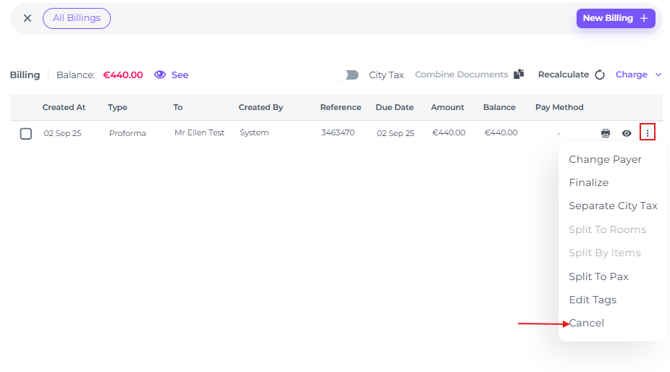
- Via Billings choose See Billings to open up the pop-up which shows you all documents.
- Cancel the original Proforma by clicking on the 'More action Button' (3 dots behind the concerning proforma)and select Cancel:
3. Create a new Proforma
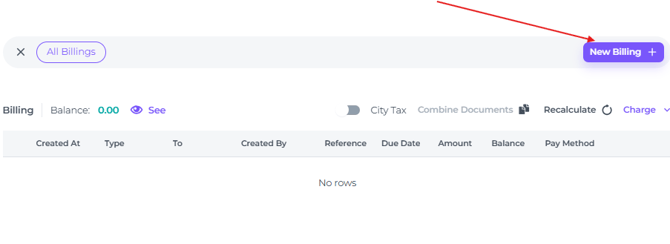
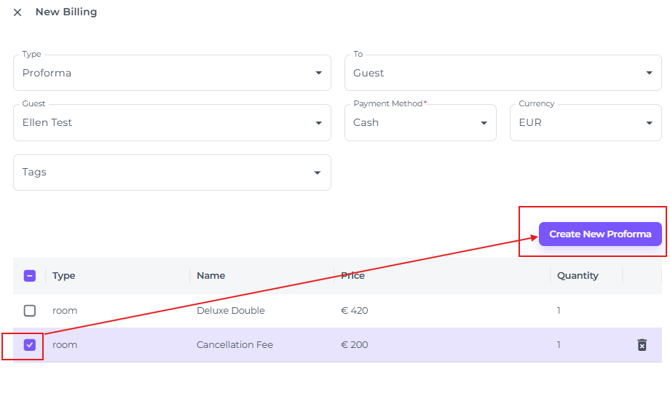
- To create a No-Show or Cancellation Proforma go to New Billing in the Billing Section:
- Fill out the fields:
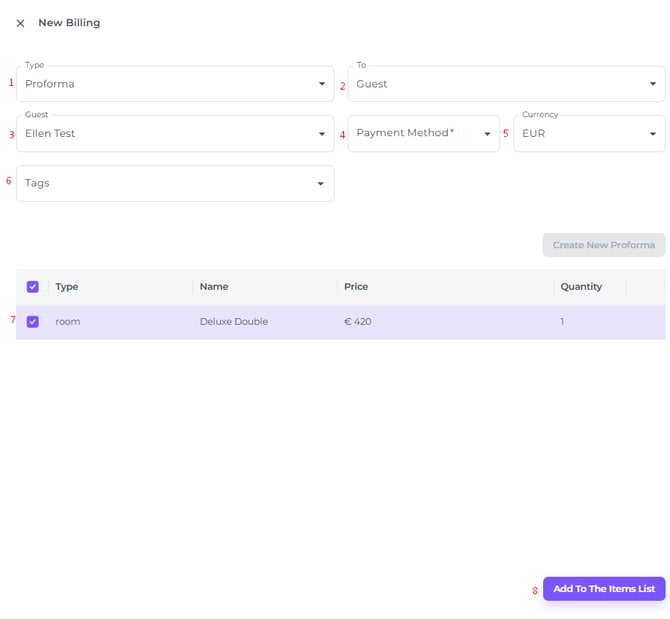
- Document type - 'Proforma'.
- To - Select the payer to appear on this proforma. This could be one of the guests listed in the booking, a company, or even an OTA (online travel agent).
- Guest/Channel/Company - Choose the correct entity.
- Payment Method - Select the payment method with which the payment is/will be made.
- Currency - Choose the currency (if there a re multiple currencies set up for your property).
- Tags - still in development, not yet active for use.
- Product type - Uncheck any checked boxes of the previous product in order create a new Cancellation or No Show item
- Add to the Item List - Add the cancellation item or No show item by changing the name.
Change the amount to the confirmed amount (Non Refundable bookings must be paid immediately upon booking), or amount to be paid if payment has not yet been yet.
SAVE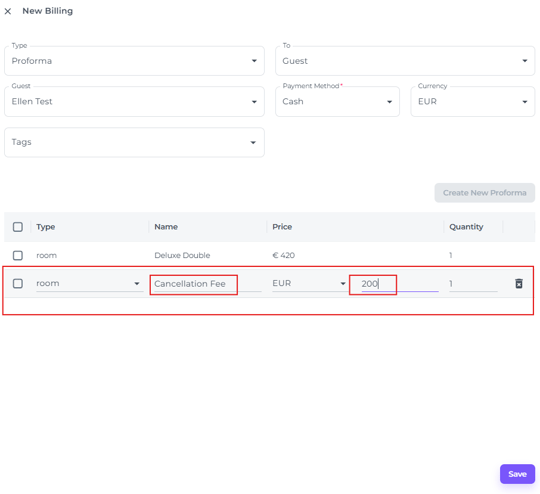
(Do not forget to Check the box after save!)
-
Finally, click on ‘Create a New Proforma’
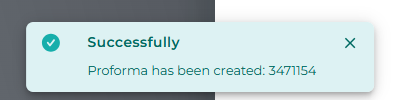
A temporary message will show stating a new Proforma has been created:

📝Note:
When you create a new Proforma, the default Item Type is always set to ‘Room’.
☝️Because Cancellation Fees and No Show Fees are treated as Room charges, do not change this item type when adding the fee to the item list.
💡Tip:
👉 For an elaborate explanation check out our article: 'How to Manually Create a New Proforma?'
☝️N.B.
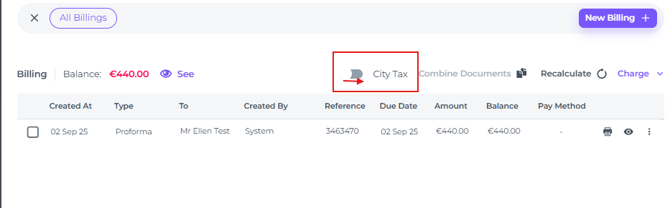
To To avoid charging City Tax/Tourist Tax you must turn the "Tourist Tax" switch ON for the New Proforma. This will create the correct Proforma invoice without this tax (the guest ultimately did not stay and therefore does not have to pay city tax):
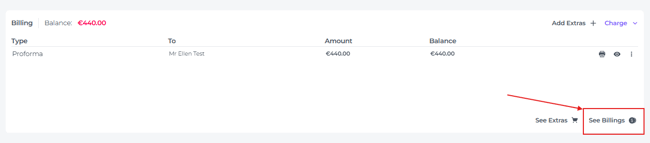
- Go to the Billing section of the booking and click on ‘See Billings’.
- In the pop-up page that appears, slide the ‘City tax’ switch to the right with the cursor:
4. Check Balance
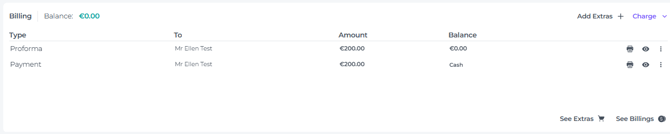
- After the new Proforma was created and the original one was cancelled, the balance of the reservation should be at '0' as the amount paid should balance with the new Proforma:
5. Attach Payment to the new Proforma
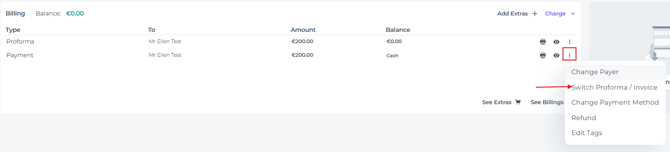
- Next is to 'attach' the payment to the new Proforma by clicking on the More Action Button (3 dots behind the payment) and selecting Switch Proforma/Invoice:
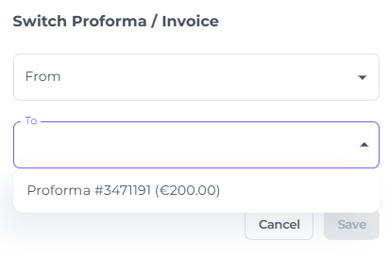
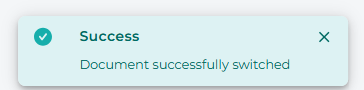
- Choose the correct Proforma where the payment belongs to and hit Save:
6. Finalise the new Proforma
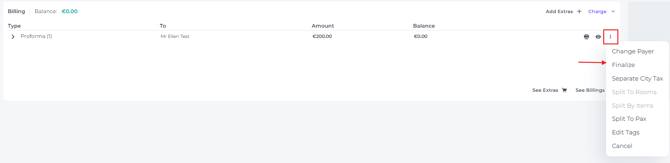
- Once you have ensured that the Proforma is correct (payer, amount, item name, etc.), you can finalise it into an Invoice by clicking on the ‘More Action’ button (three dots) next to the Proforma and selecting Finalise:
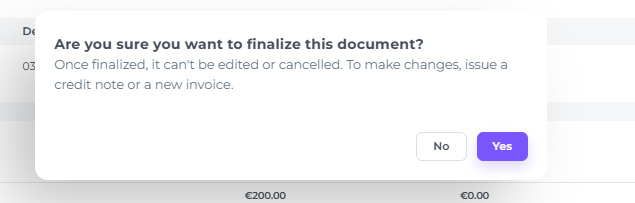
- You will be asked one more time if you are sure you want to finalise:
7. Cancel Booking if not done already
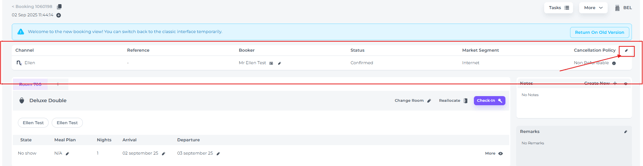
The booking still needs to be cancelled if this has not already happened automatically via the OTA or by one of your team members:- In the ‘General Information’ section at the top of the booking page, click on More
- Change the Status to Cancelled:

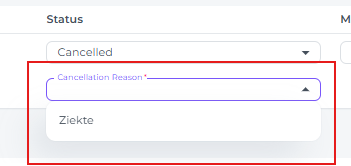
- If a Cancellation reason is required (as per configuration of your property in the system) choose the applicable one:
- Hit Save:

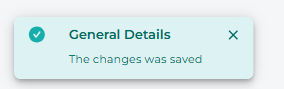
- The booking has been cancelled:
Option 2
Cancel the Original Payment and post an Extra, being the No Show/Cancellation Fee item
In order to apply this method please make sure there is an item created in the Products Feature with a title Now-Show/Cancellation Fee.
👉Check out the article 'How to create new Products' if there is no Item created for No Show / cancellation Fee yet.
The 7 steps to take for this option:
- Check Payment
- Cancel Original Proforma
- Book on the No show/Cancellation item
- Check Balance
- Attach Payments to the new Proforma
- Finalise Proforma
- Cancel Booking
1. Check Payment
- Go to the Booking Page of the concerning booking you need to cancel/which has been cancelled.
- Make sure there is a payment for the (correct) amount to be collected. If a payment is absent please make sure you collect it.
2. Cancel Original Proforma
☝️N.B.
If the booking has already been cancelled, the original Proformas will also have been cancelled automatically. In that case, the next step to cancel Proformas does not apply.
- Via Billings choose See Billings to open up the pop-up which shows you all documents.
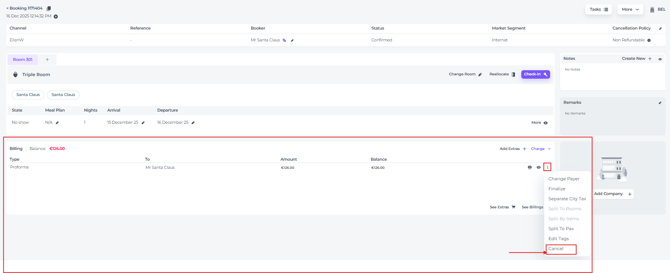
- Cancel the original Proforma by clicking on the 'More action Button' (3 dots behind the concerning proforma)and select Cancel:
3. Book on the No show/Cancellation Fee item
This will create a New Proforma
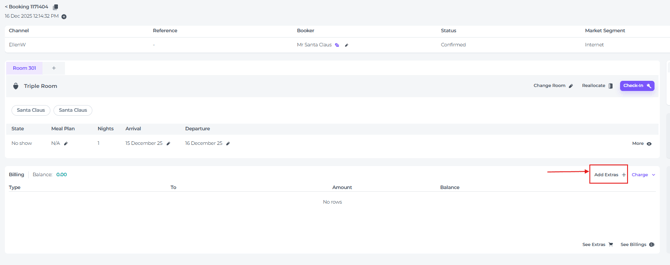
- In the Billing section, go to Add Extra's:
👉For an elaborate explanation on adding items go to our article: 'How to add Extra's to a booking? '
4. Attach Payment to the new Proforma
- Next is to 'attach' the payment to the new Proforma by clicking on the More Action Button (3 dots behind the payment) and selecting Switch Proforma/Invoice:
- Choose the correct Proforma where the payment belongs to and hit Save:
5. Finalise the new Proforma
- Once you have ensured that the Proforma is correct (payer, amount, item name, etc.), you can finalise it into an Invoice by clicking on the ‘More Action’ button (three dots) next to the Proforma and selecting Finalise:
- You will be asked one more time if you are sure you want to finalise:
6. Check Balance
- After the new Proforma was created and the original one was cancelled, the balance of the reservation should be at '0' as the amount paid should balance with the new Proforma:
7. Cancel Booking if not done already
The booking still needs to be cancelled if this has not already happened automatically via the OTA or by one of your team members:
- In the ‘General Information’ section at the top of the booking page, click on More
- Change the Status to Cancelled:
- If a Cancellation reason is required (as per configuration of your property in the system) choose the applicable one:
- Hit Save:
- The booking has been cancelled: