The purpose of having On Account set up
On Account settings are configured separately for each venue. They allow you to set company-specific due date rules for documents issued to that company, overriding the default rules in the venue’s billing settings.
When your hotel has a contract with a business client, you may agree to send invoices at set intervals rather than after each guest's stay. For example, the agreement could specify weekly or monthly invoicing, with payment due within an agreed period after the invoice is issued.
This arrangement allows you to group the stays of multiple guests travelling on behalf of the same company and bill the business client for the charges covered by the contract. Instead of receiving a separate invoice for each stay, the company receives a consolidated overview of its accommodation costs for the agreed billing period.
To keep billing clear, the contract should specify which charges the company covers, how often invoices are sent and when payment is due. Any costs not covered by the agreement, such as personal extras, should be settled separately by the guest, which will e the Proforma's payer. Clear arrangements help your team allocate charges correctly and make it easier for the business client to review and settle invoices
Company Profille
Start by defining and setting up the company’s On Account rules based on the agreed billing terms.
-
This will have to be done in the Company Profile:
Settings > Profiles > Company
- Use Filter to search for the relevant company.
- If you have the email address saved in its company profile, search by that address to help identify the correct company and avoid selecting one with a similar name.
- After applying the filter, check the search results carefully and select the correct company, especially if several companies share the same name.
- Click on the company name in order to open the settings and to configure the On Account settings:
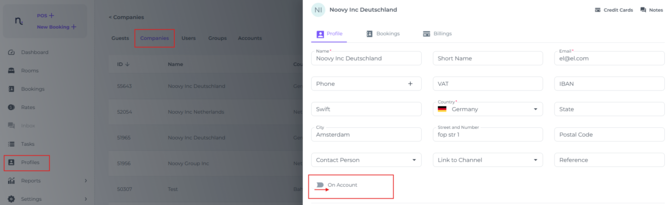
- Toggle the On Account switch to ON to open the settings.
Billing Due Date Override Type
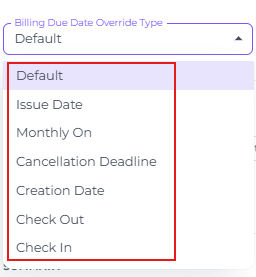
Determine the due date in the field Billing Due Date Override Type:
- Toggle the On Account switch to ON

- Set the rule that will determine the due date:

- Open the drop down panel to see the billing due date options:
-
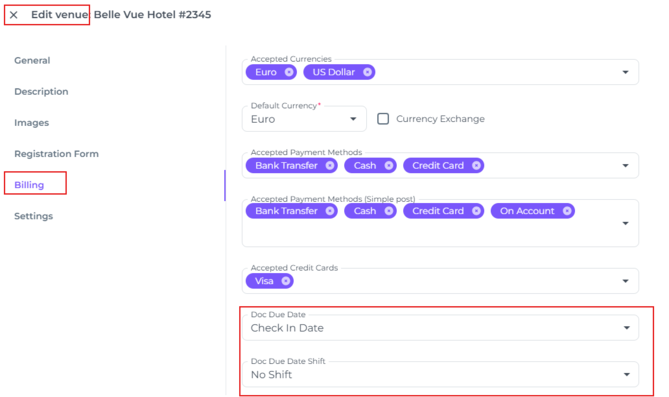
- Default - the billing due date follows the Hotel Settings (Main Menu > Hotel > Billing tab), so the due date is calculated according to the rules set there:
- Issue Date - Sets the document’s due date based on the date the document was created. (The original document will have the same issue date as the date the booking was created)
- Monthly On - Sets the document’s due date to the first day of the month following the latest end date (check-out date) across all non-cancelled bookings or group bookings.
- Cancellation Deadline - Sets the document’s due date based on the date from which cancelling the booking no longer qualifies for a full refund.
- Creation Date - Sets the document’s due date based on the date the booking or group booking was created.
- Checkout - Sets the document’s due date based on the latest end date (check-out date) across all non-cancelled bookings or group bookings.
- Default - the billing due date follows the Hotel Settings (Main Menu > Hotel > Billing tab), so the due date is calculated according to the rules set there:
-
- Check in - Sets the document’s due date based on the earliest start date (check-in date) across all non-cancelled bookings or group bookings.
- Check in - Sets the document’s due date based on the earliest start date (check-in date) across all non-cancelled bookings or group bookings.
Billing Due Date Shift Value
The number of days to 1. add to or 2. subtract from the date set in the Billing Due Date Override Type, which gives the document's final due date:
1. Adding the amount of days 
2. To subtract days, enter a minus sign before the number:

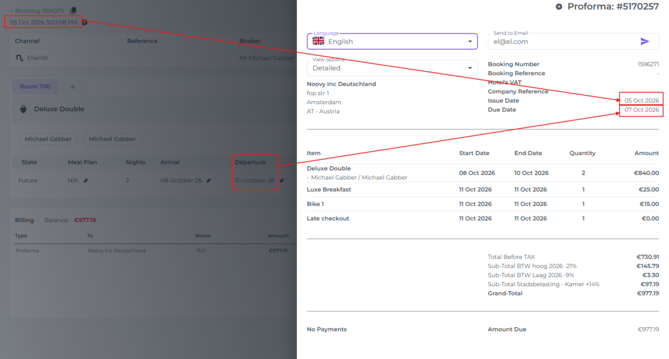
The above screenshot (1) as example:
-
-
Billing Due Date Override Type = Check Out (so the date determined when the document is due)
-
Billing Due Date Shift Value = 3 days (3 days will be added to the Check Out Date)
-
Check Out date :10.10.2026
-
Result Due Date of the Invoice : 07.10.2026
-
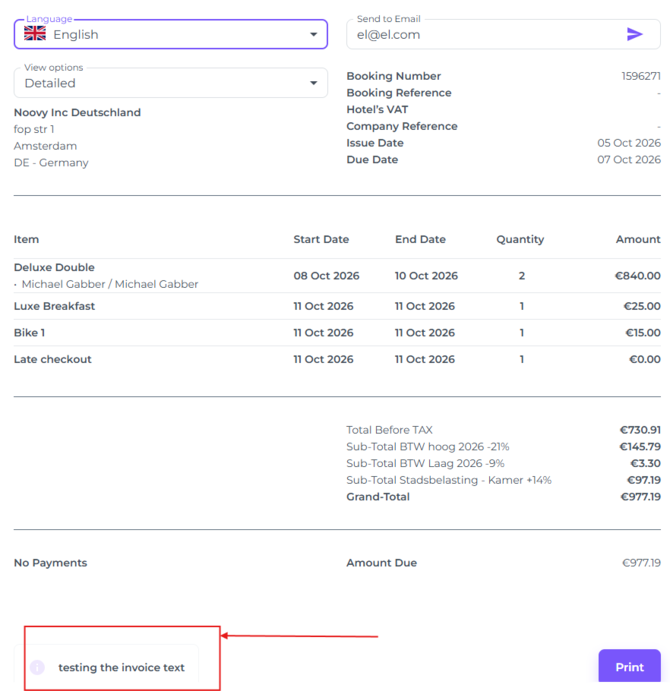
The Invoice Shows the Issue Date (the date the booking has been created or when the Document was manually made) and the Due Date following the rule set on the Company Profile.
☝️Mind you : the payer of the document must be set to Company
Invoice Text
Lastly: You can add a text in the invoice, for example when a company requires a specific Cost Centre (to identify under what costs to deduct the invoice by their accounting dep) :
This text will be displayed at the far bottom of the invoice: