What is the benefit of adding Payable items to a rate plan?
Adding Payable items to a rate plan allows you to create clear, structured packages that bundle the room with selected extras in a transparent way for both your team and your guests. By configuring these items directly in Noovy, you can define exactly which products (such as breakfast, parking, or spa access) are included in each rate plan, how they are charged (per night or per stay), and how they appear on the invoice. This not only makes it easier to design attractive offers and upsell ancillary services, but also ensures that revenue is allocated correctly to the right product types, giving you more accurate reporting and better control over your pricing strategy.
When a booking is created on a channel, it is imported into Noovy shortly afterwards. At that point, the configured rate-plan setup for the included item is applied.
In this article, we will outline the 3 rate plan set up options which helps you choose the best one for your hotel.
Option 1 - Items per night (payable)
Additional items are added to the nightly rate which is send to the channel.
- In the related Rate plan setting scroll down to the applicable field Payable Items Package - Items per night :
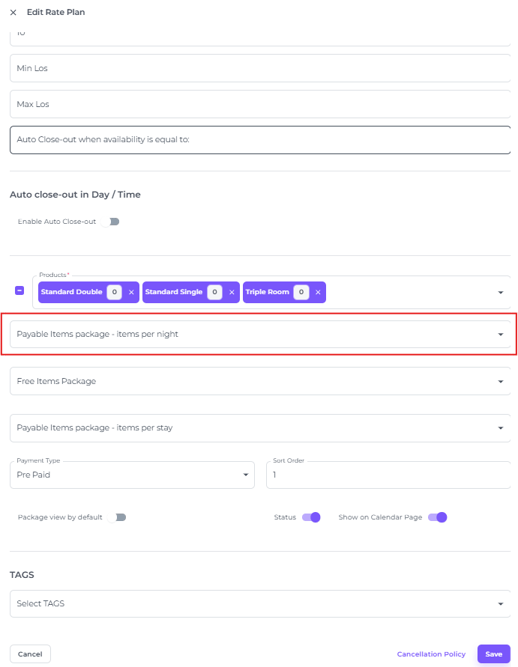
- Select the items you wish to include in this rate plan:

The logic:
Example: Room Rate = €100 + Item added = €10 per night
-
Noovy will send a rate of €110 to the channel.
-
Once the booking is received in Noovy, it adds the €10 item for each night and deduct it from the total amount, so the actual room rate remains €100 per night
-
The room rate will therefore appear as €100 on the invoice and be allocated to the correct room revenue.
-
The item will appear separately on the invoice as €10 (per night) and will be assigned to the correct product type revenue.
Option 2 - Items per stay (payable)
Merely the room rate is send to the channel
- In the related Rate plan setting scroll down to the applicable field Payable Items Package - Items per stay
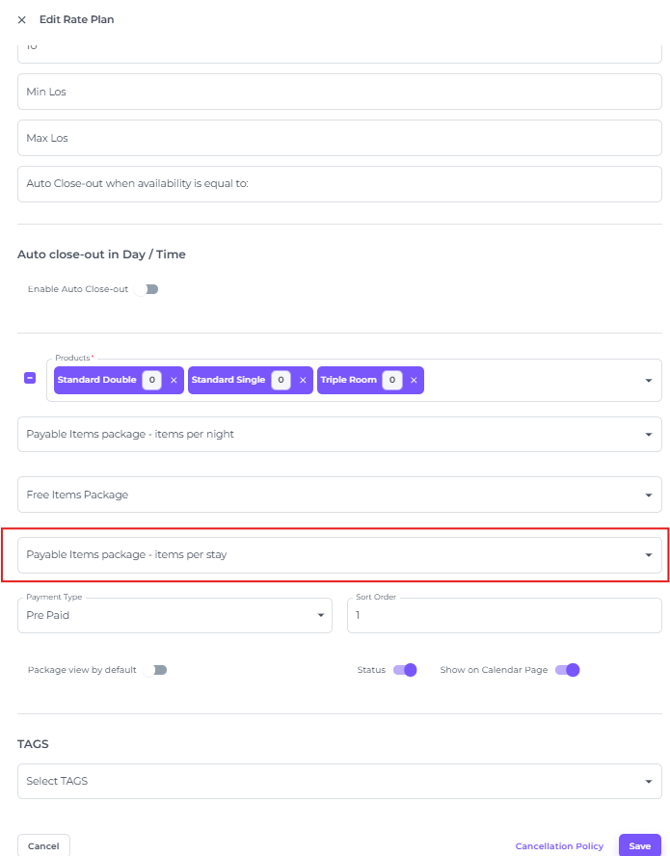
- Select the items you wish to include in this rate plan:

The logic:
Example: 3 night reservation - Room Rate = €100 + Item added = €10 per night
-
Once the booking is received in Noovy, the system adds the item once for the entire stay—for example, €30 for a 3‑night reservation. Although the guest’s total reservation value is €330 (3 × €100 room rate + €30 item), Noovy subtracts the €30 item from the total room revenue so that the effective room rate remains €100 per night.
-
The room rate will therefore appear as €300 on the invoice and be allocated to the correct room revenue.
-
The item will appear separately on the invoice as €30 (per stay) and will be assigned to the correct product type revenue.
- Channels such as Airbnb and Booking.com support adding items per booking on their side, since they know the stay length. By activating the “item per stay” setup in Noovy, the booking will come through correctly.
☝️Please Note:
Items on OTA's:
It is the hotel’s responsibility to configure any additional items on the booking channels (such as Booking.com, Airbnb, etc.) so that the final sell rates are accurate. Noovy only transmits the room rate itself to these channels.
Option 3 - Create multiple Rate plans
based on the length of stay
This is an option to choose, however as it may result in a large number of rate plans to maintain, we at Noovy generally do not recommend this.
For instance: Room Rate per night = €100 + Item added = €30 per stay
-
Create one Rate plan (for guest booking a 1 night stay) named: '1-night rate plan' would be €130.
-
Create another Rate Plan (for guests booking a 2 night stay) named: '2-night rate plan' would be €115 per night.
-
If a guest books 3 nights, the rate plan would show €110 per night (total room €300 + €30 item = €330).
- And so forth,....
💡Tip:
In addition to adding payable items to a rate plan, you can also include complimentary items, or even combine paid and free items within the same rate plan.
For more details, see our article: Adding Free items to Rate Plans
💡Tip:
Check out our other articles on Products (items or Extras):