The Booking List is the central workspace where all reservations in your Noovy environment are collected and displayed. It gives you a live, sortable overview of every booking in the system—whether it was created manually by your team or received via an OTA or your booking engine. By default, the most recently created reservations appear at the top, so new bookings and last‑minute changes are always immediately visible.
Scan key details such as:
-
guest names
-
dates
-
room types
-
status
-
balance
Jump directly into a booking with a single click.
Powerful filters refine your search so you can, for example, find all today’s arrivals with an outstanding balance, identify no‑shows from yesterday, or pull up all group bookings for a given period.
-
From the main menu, select Bookings.
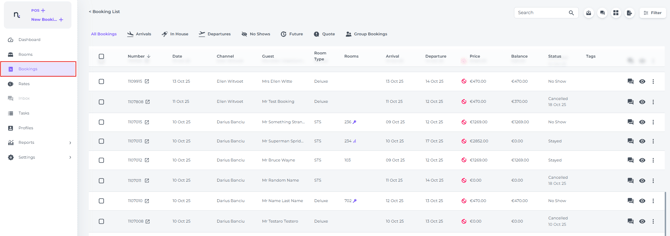
The Booking List can be narrowed down into five categories or statuses:
- By clicking on one of the tabs, you can view reservations according to their respective state:
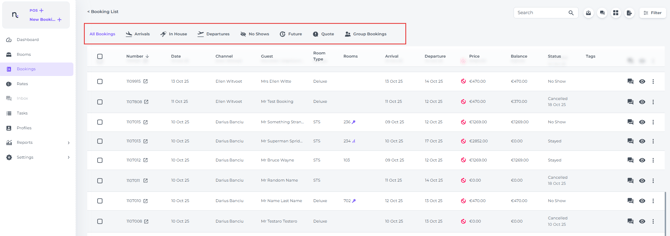
- All Bookings - A comprehensive overview of all reservations across every category, with the most recent bookings displayed first.
- Arrivals - All bookings due to arrive on the current day.
- In House - All checked-in bookings.
- Departures - All bookings due to depart on the current day.
- No Shows - Bookings scheduled for check-in before today, where either the guest did not arrive or the check-in was not processed within the system.
- Future - All bookings due to arrive from tomorrow onwards.
- Quote - Bookings with a specified date on which the reservation will be automatically cancelled if not confirmed.
- Group Bookings - Displays all group bookings.
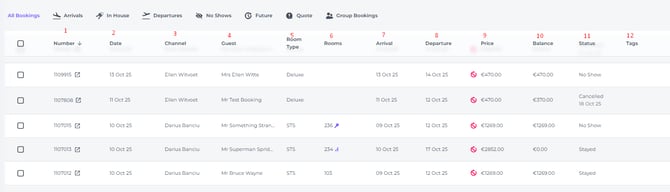
The Booking List is divided into sections:
-
Number – The booking reference provided by the system. Click on the booking number to view the booking in full detail; this will replace your current screen.
-
Booking date – The date and exact time (hoover your cursor on it to see the time) a booking was created, whether manually or through an online booking agent.
-
Channel – Indicates the online travel agent (OTA) from which the booking originated or, if created manually, identifies the system user (agent) responsible for the booking.
-
Guest – The name of the guest.
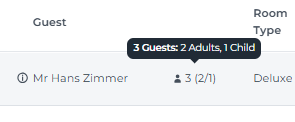
Clicking on the Guest's name will open up the guest profile.* The number of guests (divided in adults and children will be shown behind the Guest Name:
-
Room Type – The category of room booked.
-
Rooms – The room number or, if not yet allocated, a door symbol. This also features Quick Check-in (key icon following the room number:
 ) or Quick Check-out (door icon following the room number
  ).
). -
Arrival – The arrival date.
-
Departure – The departure date.
-
Price – The total reservation amount.
-
Balance – The outstanding amount left to pay.
-
Status – Future, Arrival, Departure, In House, No Show, Stayed, or Cancelled.
-
Tags – If any tags have been added to a booking, they will be displayed in this section.
At the top right of the screen, you will find five Booking List features:
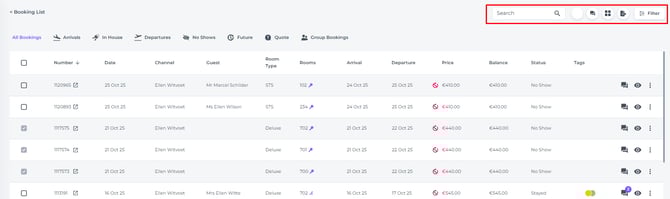
- Search Bar - Find bookings by name, reference number OTA and system-booking number.
- Comments - Shows all comments that were entered bookings across every category.
- View Option - Choose between List format and Card Format:
List Format: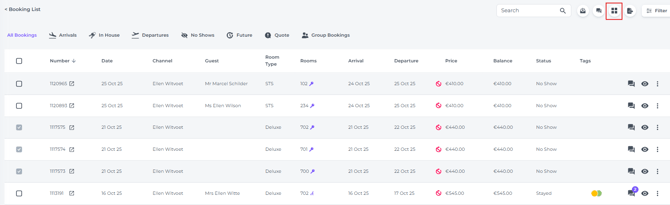
Card format: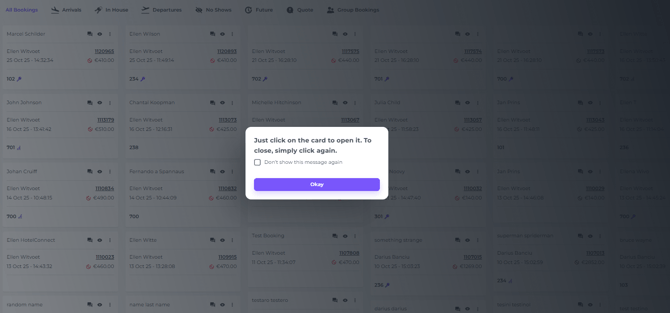
- Exel/ PDF - Download the Booking List in Exel format or PDF format
- Filter - Search booking by multiple criteria
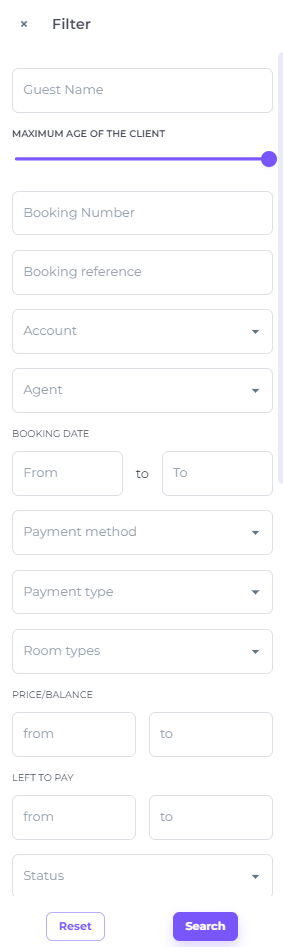
At the end of each booking row, there are three features to choose from:
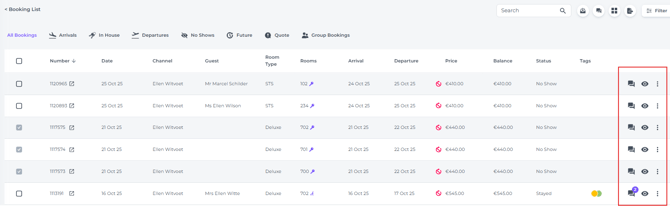
- Comments - The comments applicable only for this specific booking.
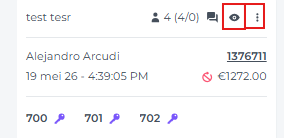
- View / Eye Icon - Open the quick view of the booking. This pop-up provides a comprehensive snapshot of the reservation’s key details:
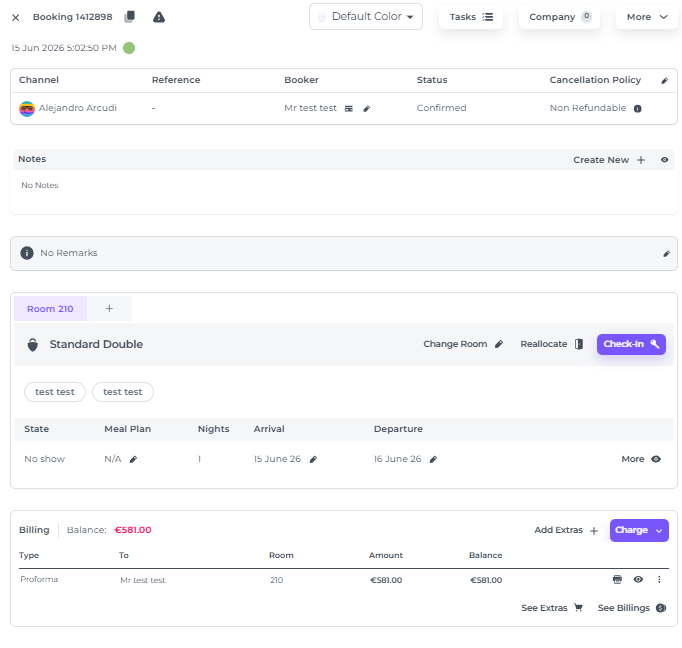
💡Tip:
Check out our article:
The Booking Pop-Up Explained
- More Action Button / Three dots - Gives you multiple options only applicable to the specific booking:
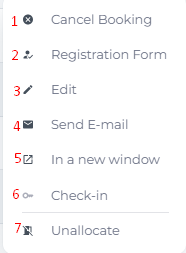
1) Cancel Booking
2) Registration Form - To Print, update guest details or go to the online check in
3) Edit - Amend booking
4) Sens Email - Send any template
5) In a new window - Open booking in a new window
6) Check-in - Or check out when the booking was checked in already
7) (un) Allocate the booking - Action depends if allocated or not
*In the Grid format these features are shown as well: