Events
Hotels often have special periods such as holidays, festivals, and local events, such as concerts. These dates usually bring unusual demand patterns—higher occupancy, longer stays, or specific guest profiles (families, groups, business travellers, or event attendees).
Capturing these Events centrally in the PMS also helps with future planning. Over time, hotels can compare performance across years, identify which Events have the strongest impact on demand, and refine their strategy to maximize revenue and guest satisfaction each time those periods return.
☝️N.B:
This article explains how the Events feature works. For step-by-step instructions on creating an event, see the “How to Create an Event” article.
How and where events are shown after created
Calendars
Events are displayed on the following calendars:
- Rate Calendar
- Room Calendar
-
The Events are highlighted as an additional colour marker on the dates they are set. Event colours are defined when the Event is created.
-
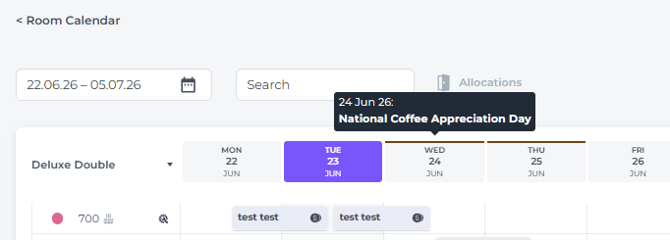
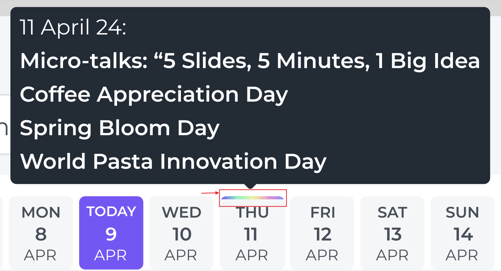
Hovering over an Event-day displays a 'tooltip' listing all Events for that date:
-
Room Calendar
-
Rate Calendar
-
-
List View

-
Calendar View
-
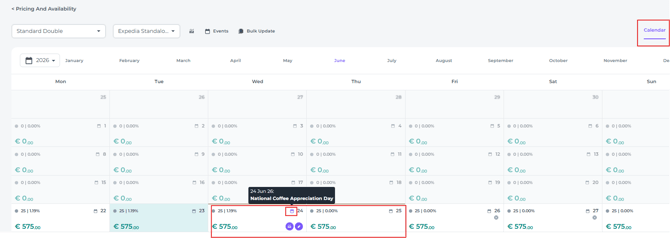
When you hover over the calendar icon on a day that shows Event colours, a tooltip will appear listing all Events for that date:
-
-
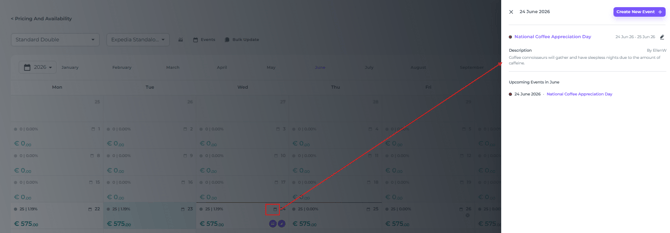
Clicking on the calendar icon will give you the Events pop up with detailled overview:
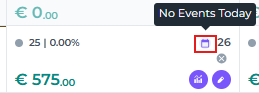
- If there are no Events, clicking on the calendar icon will result in a tooltip with the following notification:
-
-
If multiple Events fall on the same date, a colour gradient will be shown, combining all relevant Event colours for that day:
Reports
Events are displayed on the following Reports:
- Availability Report
-
Manager Report
-
On Books Report
-
Pickup Report
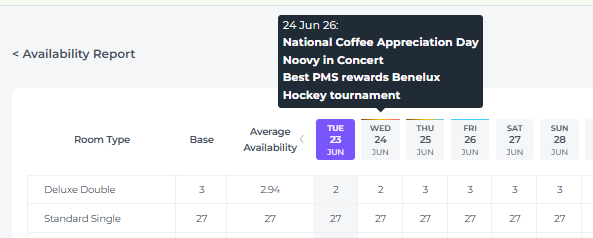
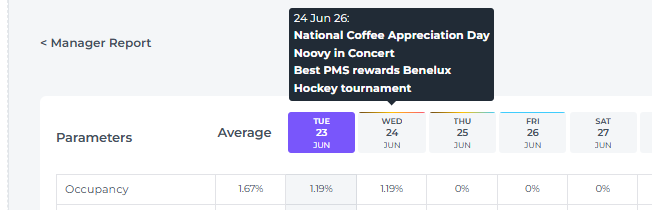
On these reports, Event dates show coloured markers with a tooltip; clicking it opens the detailed Event pop-up.
-
Availability Report
-
Manager Report
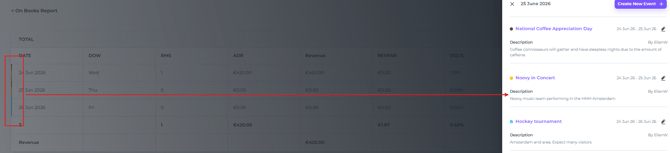
- On Books Report - Coloured markers appear on all dates with Events, no tooltip is shown when you hover over an Event date, yet clicking on the colours opens the Event pop-up detailed overview:
- Pick Up Report
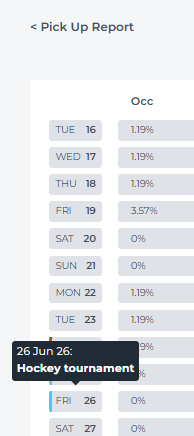
Event detailed Pop-Up
When you open the event details, you will see the following information:
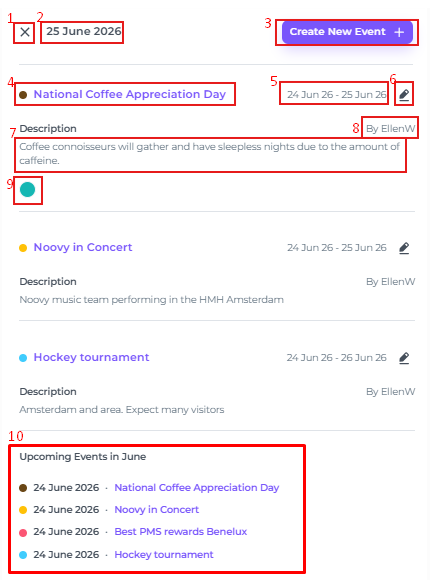
- Close the Pop up
- Date you selected to view
- Create a new Event will lead you to another pop up where a new Event can be created for any date
- Name of the Event and the chosen Event colour
- Event Dates
- Edit Event - with the option to Delete the Event (bottom of pop-up)
- Event description – you can use up to 16 lines
- The user name of the person creating the Event - edits by another user will not overwrite this
- If a tag is added, a coloured dot appears - hover over the dot to see a tooltip with the tag name
- Shows all upcoming Events scheduled in the month of the selected day - past Events are not displayed
Month Overview via the Rate Calendar
On the Rate Calendar (Calendar View) you will be able to open the Event Calendar by clicking on the Calendar icon on top:
Details explained:
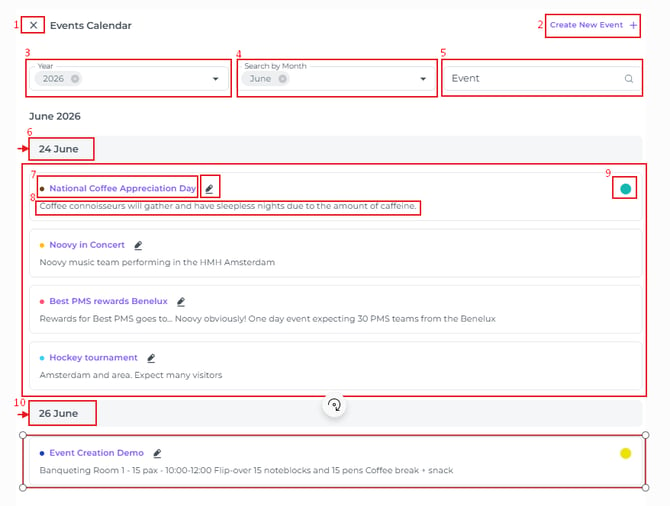
- Close Monthly Overview
- Create New Event, for any date
- Year – shows the current year, the previous 2 years, and the next 2 years. (If you leave this field blank, events from all years will be displayed.)
💡Tip:
Select the current and previous year(s) to compare events year over year - Shows the month on which you opened the Events Calendar (If you leave this field blank, events from all months will be displayed)
- Search for a specific Event
- Date of the Event(s), with each Event listed below
- Event Name + Event Edit Button
- Description of Event
- Tag
- Next Event date, with the corresponding Event(s) listed below
Permissions
-
Users with the appropriate permission can create, edit, and delete Events.
-
The “Update Events” permission must be enabled for their role. If it is not enabled, the Edit and Delete options for events are unavailable.
-
-
To view Events the permission "View Events" in the role must be activated.
💡Tip: Check our article How to Create a Customised Role