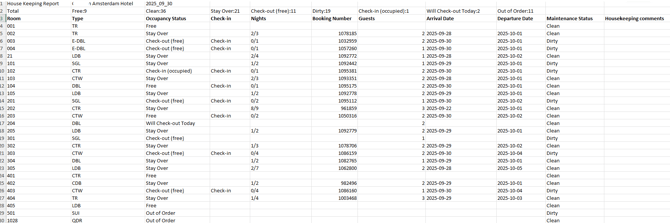
The Housekeeping Report is a crucial document, providing a real-time snapshot of each room's occupancy status informing of which rooms require cleaning and the number of nights occupied, allowing the team to determine the specific level of service required. The report is used to facilitate seamless communication between departments—primarily the Front Office and Housekeeping—ensuring that rooms are pristine and ready for guest arrivals.
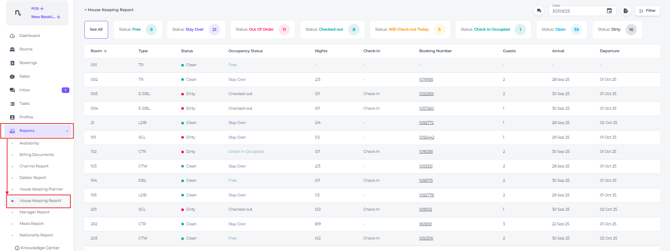
- The Housekeeping Report can be found in the main menu under Reports - Housekeeping Report:
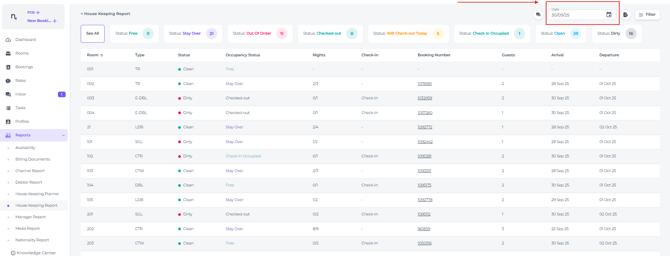
- Use the date picker to select the specific date you would like to view details for:
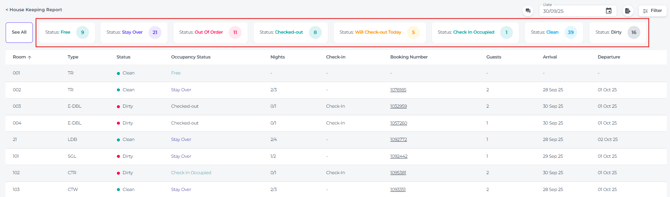
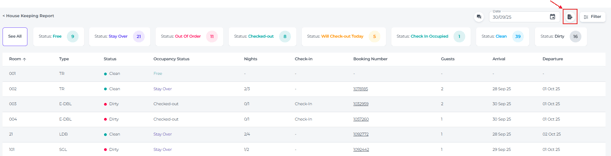
- The top section of the report provides a breakdown of the total room count for each Housekeeping status:
📝Note:
Only active statuses are shown. If a category is missing, it means there are no rooms with that status at this time.
-
-
Free: Rooms that are currently unoccupied. These may have had a departure today or remained vacant overnight.
-
Stay Over: The number of occupied rooms where the guest is staying another night and requires stay-over servicing.
-
Out of Order (OOO): Rooms unavailable due to maintenance, repairs, or specific operational issues. The Housekeeping Manager should review these statuses to determine the cause and coordinate the necessary repairs.
-
Checked-out: Rooms where guests have departed today; these require a full departure clean to be made ready for the next arrival.
-
Will Check-out Today: The number of rooms scheduled to depart on the current date that have not yet vacated.
-
Check In Occupied: The number of rooms where guests with a current-day reservation have already checked in.
-
Dirty: The total count of rooms currently flagged with a 'Dirty' status, requiring attention.
-
Clean: The total count of rooms that have been serviced and are flagged as 'Clean'.
-
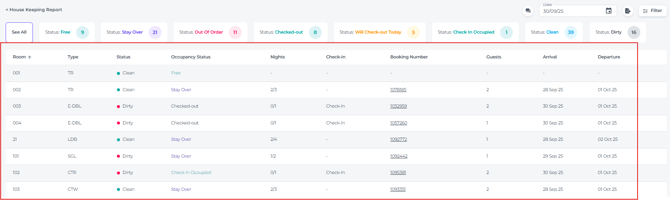
The columns explained:
-
-
Room: The specific room number (or room name, where applicable).
-
Type: Indicates the room category. This is essential for housekeeping planning, as different room types may require varying cleaning times, specific amenities, or extra attention to detail.
-
Status: Displays the real-time 'Dirty' or 'Clean' status of the room.
-
Occupancy Status: Shows the current state of the room (e.g., Free, Checked-out, Stay Over, Check In Occupied, or Will Check-out Today).
-
Nights: The number of nights the guest has already stayed relative to their total reservation. This is vital for determining when to renew bed linen to ensure property standards are met.
-
Check-In: Indicates a room is assigned to an arriving guest. Housekeeping should prioritise these rooms to ensure they are ready before the property's guaranteed check-in time.
-
Booking Number: The unique identifier for each reservation. Clicking this link will take you directly to the Booking Details page.
-
Guests: The number of guests occupying the room. This helps Housekeeping prepare the correct amount of linen and amenities.
-
Arrival: The date the guest arrived or is scheduled to arrive.
-
Departure: The date the guest departed or is scheduled to depart.
-
-
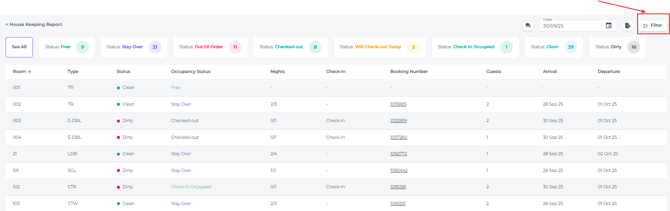
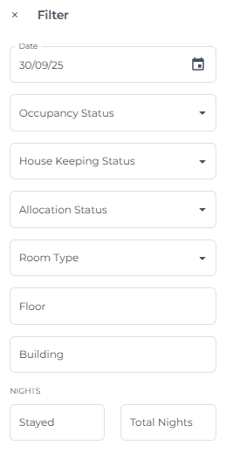
The Filter allows you to narrow down your search results, displaying specific details based on the criteria you select:
-
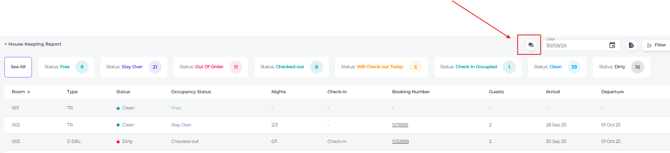
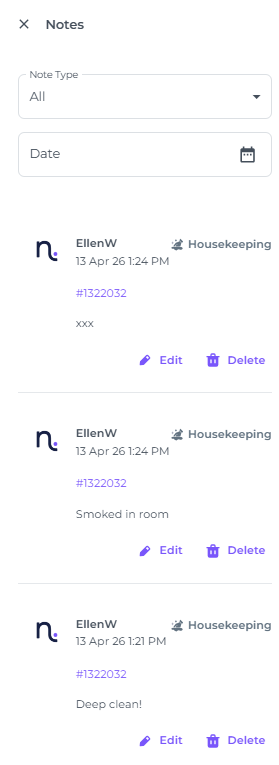
The Comment icon displays all internal notes within a reservation that are specifically directed to the Housekeeping department.
Please note: Room-specific notes are only visible when that particular room is displayed on the screen. To review comments for all rooms, simply scroll through the pages.
💡Tip:
Export the report by clicking on the Export button:
The PDF export will appear as follows: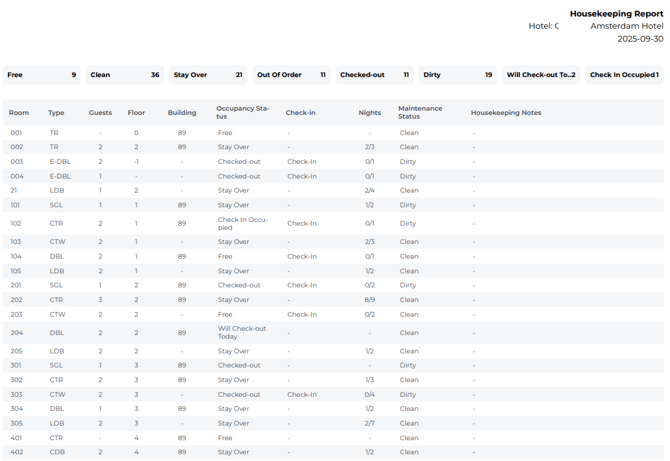
The same information in Excel format :