Noovy Inbox provides a single, unified inbox for your guest enquiries. There is no longer any need to log into OTA extranets to answer questions.
The Inbox Feature:
-
Connects to WhatsApp, Booking.com Messenger, Expedia, and Airbnb, bringing all guest communication into one Centralised Inbox in Noovy.
-
Sends out Confirmation, Pre-Arrival, and Post-Departure messages automatically to guests via WhatsApp.
-
Answers guest questions with AI across all above mentioned channels, in any language.
For hoteliers, the Noovy Inbox will boost guest satisfaction while saving countless hours. Contact our Support team if you would like to make use of this amazing new feature.
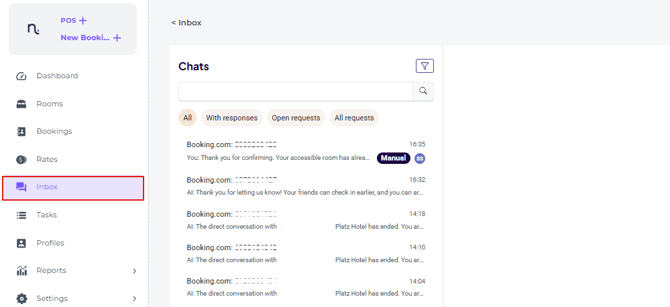
The Inbox Feature can be found in the main menu by selecting Inbox:
💡Tip:
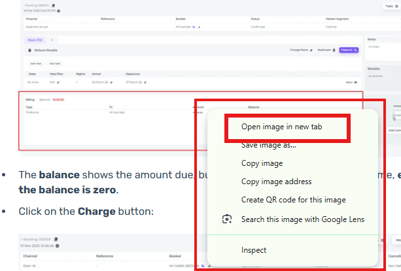
To enlarge the screenshots in this article, click on it with your right mouse pad and select 'Open Image in new tab':
 .
.
How messages appear in Noovy:
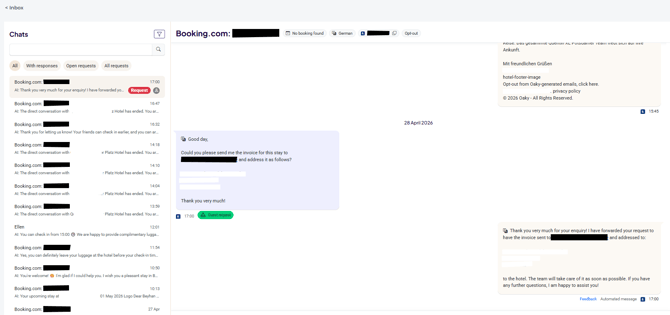
When the feature is enabled, the Inbox page displays all guest messages, along with their guest details and booking numbers (Here these are blacked out for privacy reasons):
AI Responses or Manual Chat:
AI messaging
The system will respond to the enquiries by AI and does all the work for you. It will use publicly available data combined with hotel-specific information (*These details must be entered in Inbox Settings before the feature can be enabled. For more information, see the ‘Input’ section below.)
-
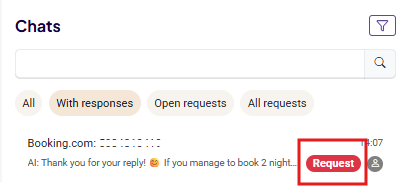
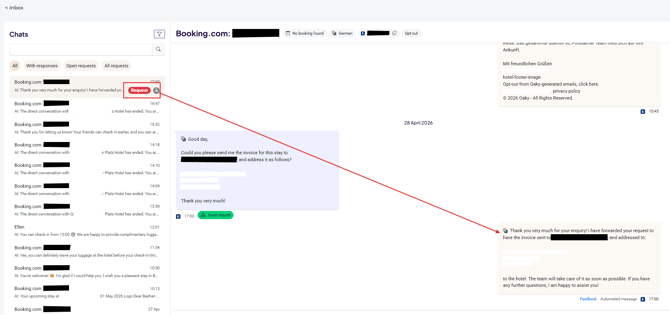
If the AI is unable to answer a question, the hotel will be notified, as the message will be marked with Request:
-
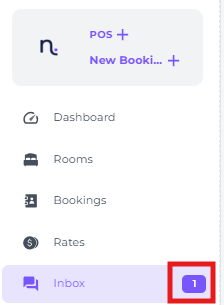
A notification badge on the Inbox tab in the main menu shows how many open requests require action:
-
AI will inform the guest that the hotel has been notified, as you will see in the below example conversation:
-
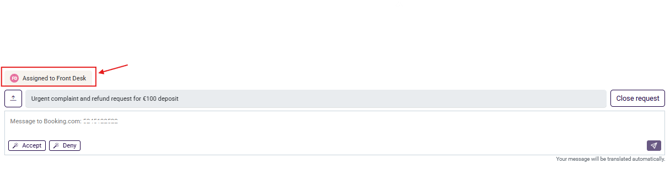
A request will be unassigned but as soon as the user picks up the request,

this user will become the assignee:
-
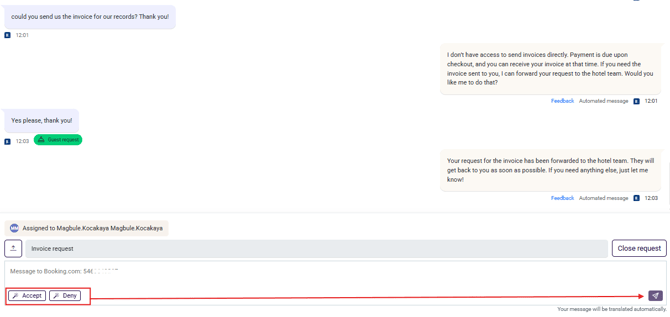
You can accept or decline a request by clicking the corresponding button, after which the AI will send a suitable response to the guest:
-
Or you can reply to the guest directly:

- After you reply, the conversation is automatically handed back to AI:
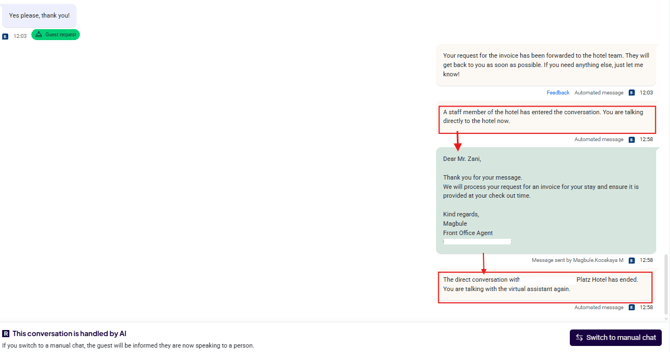
Manual responses
-
Users can switch to “Manual Chat” at any time to send messages directly to guests
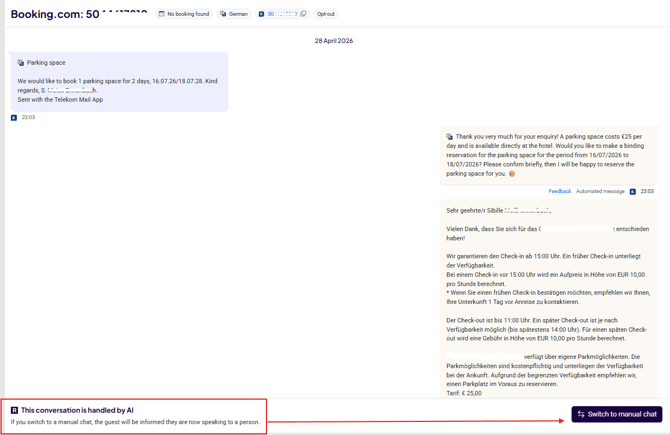
☝️Note:
After sending a manual message, switch back to AI Chat; otherwise, new messages will no longer be answered automatically by the AI.
Language:
At the top of the message, the details bar displays the language used by the guest:

-
AI will also respond to the enquiries in the guest's language.
(During setup, you can choose your preferred display language in Noovy, so guest enquiries are automatically shown in your hotel’s local language.)
-
Translated messages and responses are marked with a translation icon
 in front of them: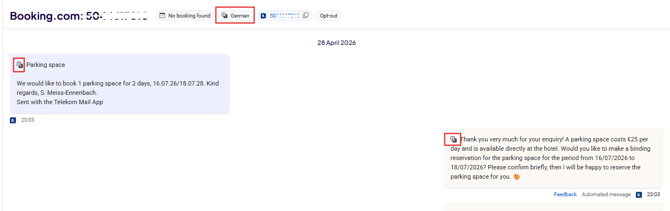
Option to open the booking on the Extranet:
-
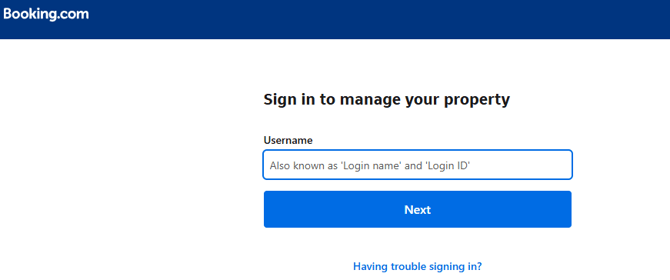
By clicking on the reference number in the message details bar, you will be redirected to the relevant OTA extranet:

This will take you either to the OTA extranet login screen or, if you are already logged in, directly to the specific booking:
Opt Out:
-
Once a booking is made, by default a confirmation is automatically sent via WhatsApp.
In this text guests can choose to click on more information buttons or choose ‘Nothing for now’ to Opt Out.
-
This ‘Nothing for now’ response is followed by a courtesy message and an option to ‘Silence’ notifications. Selecting this will opt the guest out, and the AI will cease sending further messages. (The guest however will still be able to make enquiries by sending a text at any time.)
-
-
To manually opt out the guest from future messaging,
simply click 'Opt-out' on the details bar:

-
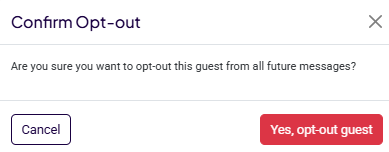
As a precaution, you will be asked to confirm before proceeding:
Input:
The AI uses publicly available data combined with hotel-specific information.
Before you start using this feature, it’s crucial to enter accurate information into Noovy.
AI responses fully depend on the quality and completeness of the data configured in your Inbox Settings.
⚠️Please note:
If any information is missing from these settings, AI will not be able to answer questions about that topic.
As mentioned above, this will be indicated by a notification in the Inbox Settings so you can update the missing details.
The example below highlights several content areas that still need refinement. Once you update and complete these settings, the notification will disappear. When you first start using Noovy Inbox, this may occur every so often as you might have unfinished content, until you’ve added enough information for AI to answer consistently on its own.
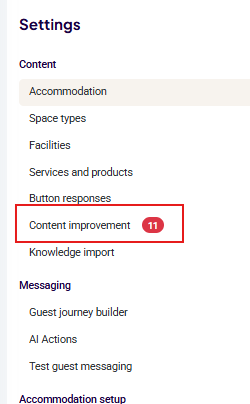
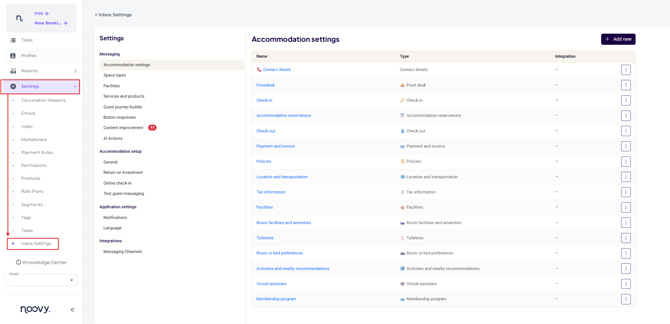
Content can be added and updated under Settings > Inbox Settings, where hotel details, rules, and policies can be configured:
-
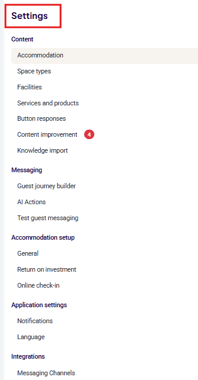
In Settings, review each content tab and complete as much information as possible so your AI can consistently provide accurate, relevant answers.
-
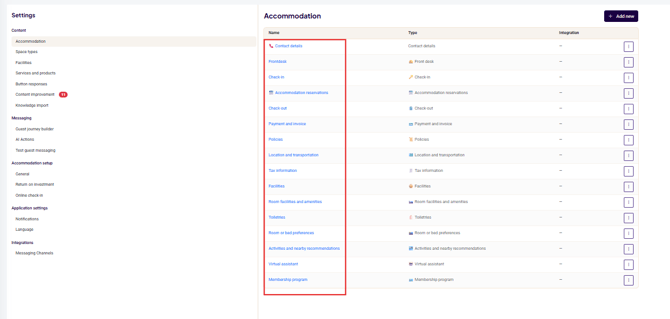
Clicking on the content tab will open it and here you will start entering all data one by one:
-
Start with the Accommodation tab,
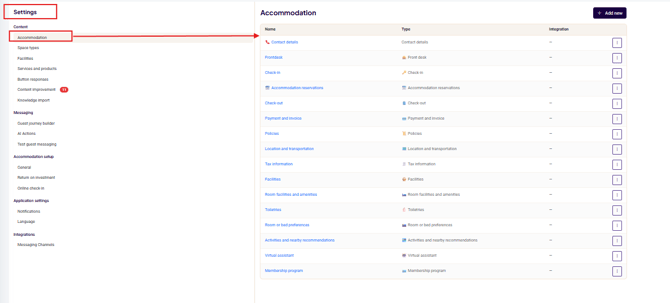
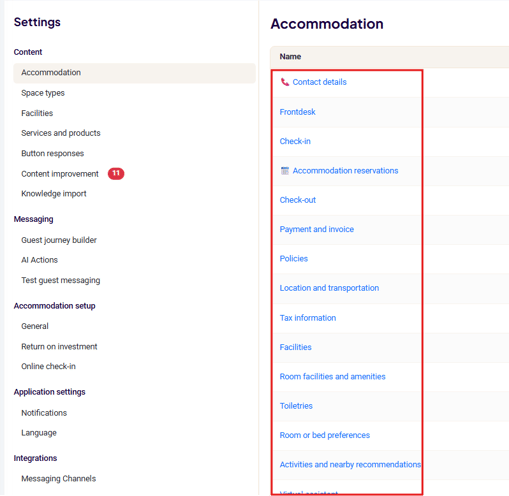
- and work your way down, completing the data for each section one by one:
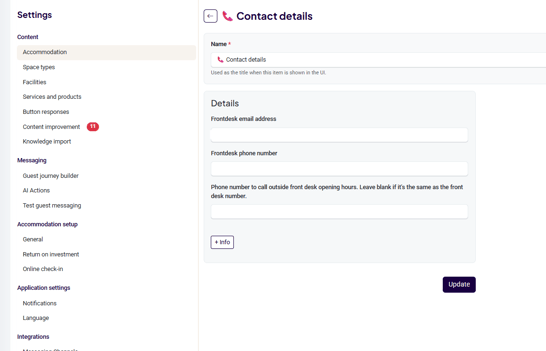
- If you need more information in a specific section you are able to add this by clicking +Info:
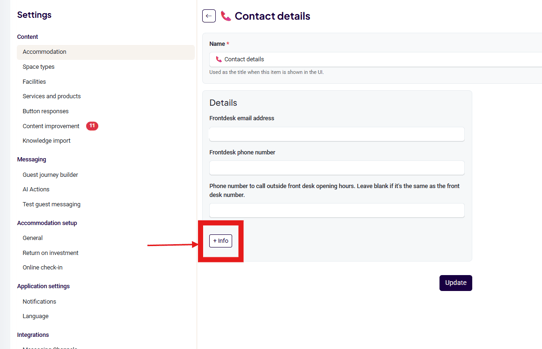
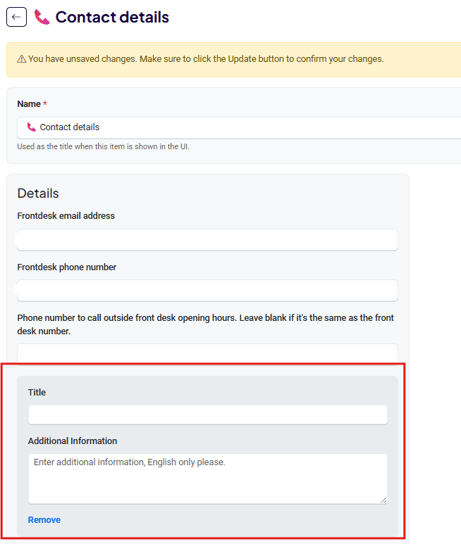
- Enter the new Title and description:
Our Support team is available to help with any questions is you are in doubt anywhere in the process.