Rate Plans Page
Your Rate Plans are tailored pricing frameworks that pair specific room types with defined booking conditions—such as cancellation policies, payment terms, dining options (like breakfast included), and minimum length-of-stay requirements. Guests can choose from your configured rate plans on your website and across your connected booking channels.
Setting up your rate plans correctly is essential for selling rooms effectively and managing the revenue they generate. During onboarding, our team will guide you through the best setup, and your Account Manager will configure the plans for you. Even so, understanding your rate plans and their settings will help you make informed adjustments when your business needs change.
Once the Rate Plans are created they will all be listed on the Rate Plans Page where you can edit them at any time (Note: If you need to make changes, please contact your Noovy Account Manager first, as some edits may unintentionally affect existing bookings.)
The Rate Plans Page can be found in the main menu > Settings > Rate Plans: 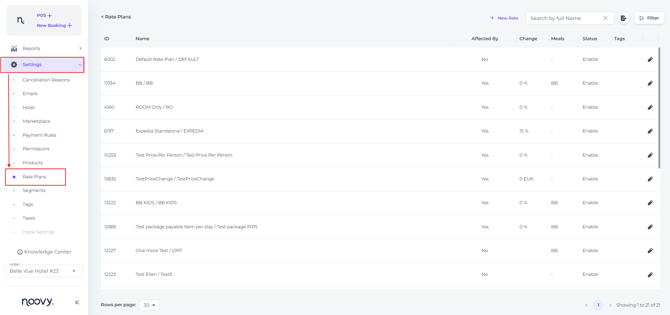
The Rate Plan Page: Field-by-Field Explanation
The Rate Plan Page provides an overview of all existing rate plans, including both enabled and disabled plans. The Default rate Plan will always be on top of the list:
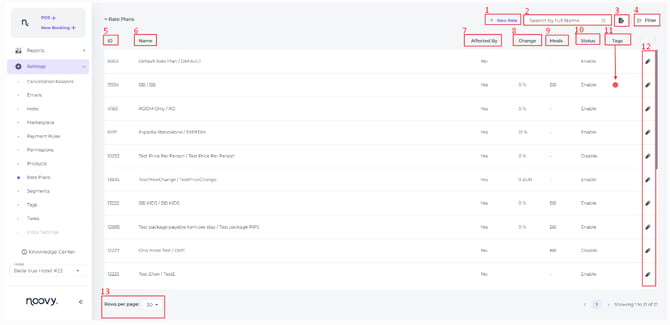
- New Rate - Create a new Rate Plan
- Search - Find a specific Rate Plan
- Excel - Import the Rate Plans (either filtered or not) into an Excel sheet
- Filter - Narrow the list of rate plans to get a clearer overview when needed.
- ID - Unique identifier for the associated rate plan
- Name - Name of the Rate Plan
- Affected by - Indicates whether another rate plan influences the selected rate plan
- Change - Shows the extent to which a RP is influenced by another RP
- Meals - Shows if a Meal Plan is attached to the RP
- Status - Shows if the RP is either Enabled or Disabled. Rate Plans can not be deleted/ completely removed. (⚠️ Removing a RP can have serious consequences for bookings already made with this RP. Please always consult our Support Team.)
- Tags - If tags are assigned to a rate plan, the corresponding dots and their colours are displayed here
- Edit - Click here to edit the RP (Please always consult or inform our support team of any change made in the Rate Plan prior saving the changes)
- Rows per page - Select how many rate plans to display on each page
Edit Rate Plan: Field-by-Field Explanation
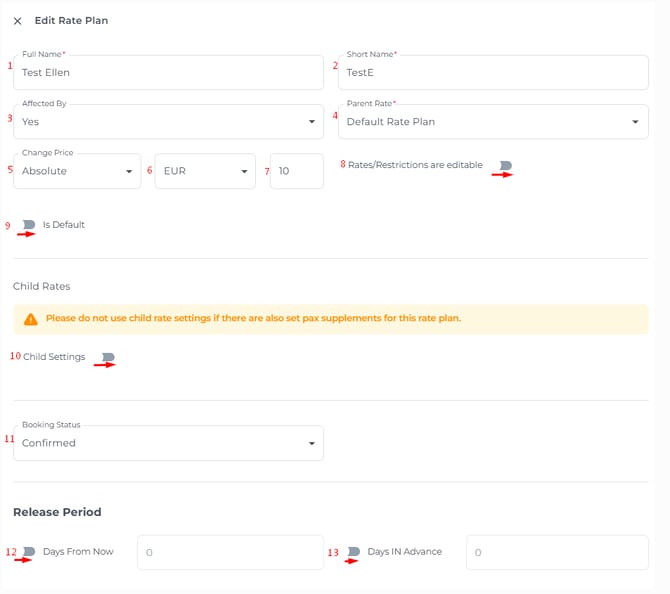
-
Full Name - The name of the Rate Plan
- Short Name - Abbreviated version of the full name
- Affected By - Yes-No indicates if this rate plan is influenced by another RP
- Parent Rate - If completed, this field identifies the rate plan that influences the current rate plan
- Change Price - Select Absolute to enter a fixed amount or Percentage to enter a percentage-based adjustment
- Rate Plan Currency - The currency for this rate plan, if multiple currencies are configured
- Value - The value of the adjustment, shown as either a fixed amount or a percentage
- Rates/Restrictions are editable - when toggled ON you can edit the rate in the rate calendar even though it is affected by another RP
- Is Default - Allows the hotel to designate this rate plan as the default
- Child Settings - When toggled on you will be able to give discounted rates for children (any person aged under 18) as well as to attach a meal plan for child breakfast (a child breakfast should be set up in the feature Meal Plans).
- Booking Status Confirmed or On Request - “Confirmed” is the standard status. When you select “On Request,” all bookings on this rate plan must be manually approved. Use this option if you want full control over which bookings are accepted for this rate plan, and make sure to check daily for any pending “On Request” reservations.
- Release Period Days From Now - You can choose to have the rate plan active x days from the current date in the future
- Days in Advance - the RP is active x days from the current date
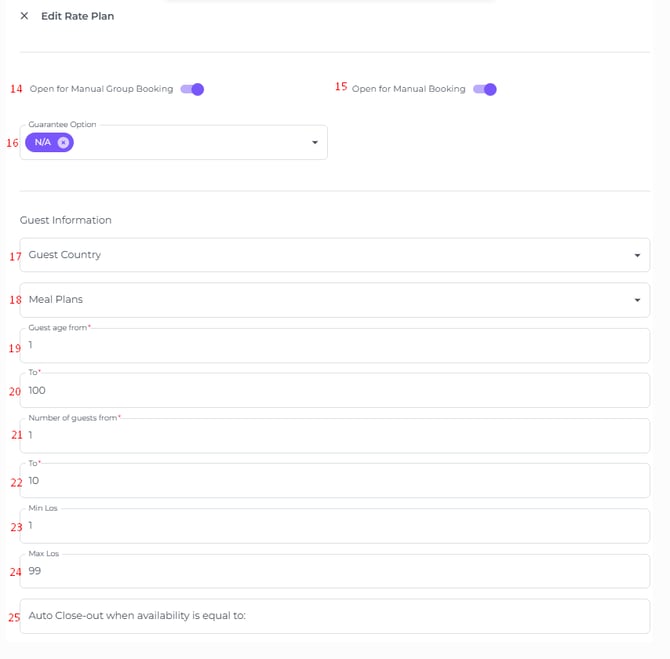
- Open for Manual Group Bookings - When toggled on, this rate plan will be available for group bookings
- Open for Manual Booking - When toggled on, this rate plan will be available for manual individual bookings
- (Guarantee Option - No longer in use)
- Guest Country - If you want only residents of a particular country to be eligible to book this rate
- Meal Plans - The Meal Plan(s) attached to this RP
- Guest age from - Minimum age of guests being eligible for this rate
*For example, when a child rate applies. Setting a minimum age ensures the rate and meal plan only apply to suitable age groups - Guest age To - Maximum age > if guests are over a certain age set they are not eligible for this rate
- Number of guest from - The minimum number of guests.
For instance, if you enter 2, the rate is only available for bookings of two or more guests; solo travelers cannot book this rate - Number of guests To - Indicates the maximum number of guests permitted to book this rate
- Min Los - This restriction will set a minimum length of stay on the rate plan. (Therefore it will override any Min Los set on the rate calendar).
*For example: setting this to 3 means guests must book at least 3 consecutive nights to access this rate. - Max Los - This restriction will set a maximum length of stay on the rate plan. (Therefore it will override any Max Los set on the rate calendar).
*For example: setting this to 3 means guests can book up to 3 consecutive nights to access this rate. - Auto Close-out when availability is equal to -The number of rooms at which availability will automatically close sales entered, and therefore stop accepting new bookings for this rate.
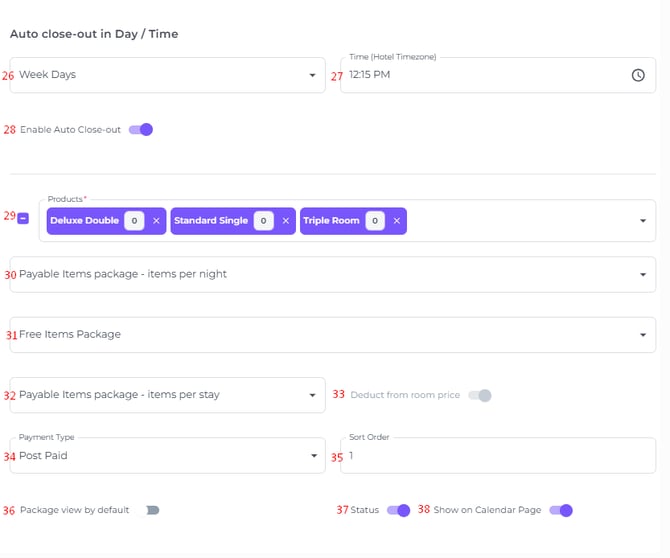
- Weekdays - When enabled, you can specify on which days of the week this rate will be unavailable for booking. This will allow you to control the rates available for booking.
- Time - Specify the time at which the rate should close on the selected weekdays
- Enable Auto Close-out - Enable this option to close the rate plan based on the criteria specified above.
- Products - The room types included in this rate plan
- Payable Items Package Per Night - Items that may be added to the package:
- The item price is allocated evenly across all nights of the stay and subtracted from the room rate, while keeping the total booking amount unchanged (the total remains exactly as displayed in the channel).
- The deduction is distributed evenly across all nights of the stay (with minor rounding adjustments if necessary). Select the items that are not included in the room rate—these will be added on top of the rate shown in the rate calendar.
- Free Items Package - Items that are included in the room rate—these items will appear on the Proforma with a value of 0.
- Payable Item Package Per Stay - Items added to the package:
- Items are added once per booking ( per room! ) instead of per night
- These items are automatically added to the booking when it is created
- Deduct from Room price - Some channels already include the item price in the rate sent to Noovy. If this rate plan was created for one of those channels, enable this switch.
- Payment Type -Select whether this rate plan will be Post-Paid (pay at the property) or Pre-Paid (pay in advance; recommended for non-refundable rates).
- Sort Order - Set the position of this rate in the list of Rate Plans.
- Package View by Default - When this toggle is enabled, the rate is displayed in package view. All items included in the rate plan (meal plans, room, and extras) are combined into a single line with the rate plan name. For example, on the invoice you will see “Special package with minibar” instead of separate lines such as “Double room”, “Bottle of cola”, etc
- Status - When toggled on, this rate is activated and available for guests to book
- Show on Calendar Page - Recommended. This enables you to manage rates and availability for this rate plan directly through the Rate Calendar. When toggle is switched off, the rate plan will not be shown on the Rate Calendar drop down menu for rate plans
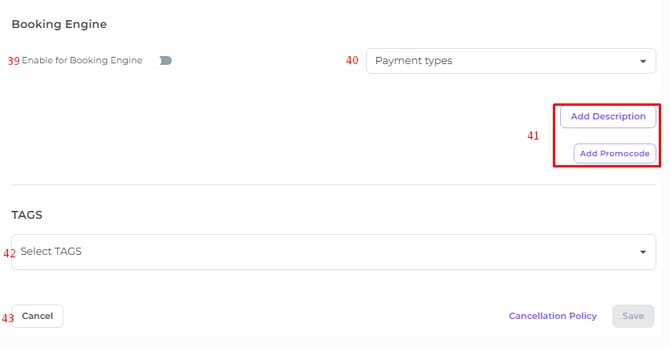
- Enable for Booking Engine - Will enable the RP to be used in Noovy's Booking Engine
- Payment Types - Applicable to the Booking Engine
- Add Description/ Add Promocode - Applicable to the Noovy Booking Engine
- Select Tags - Tags set for this rate plan
- Cancel - cancel all edits and return to RP page
Cancellation Policy - Add a specific cancellation policy to the rate plan. For more check out our article How to manage a cancellation policy