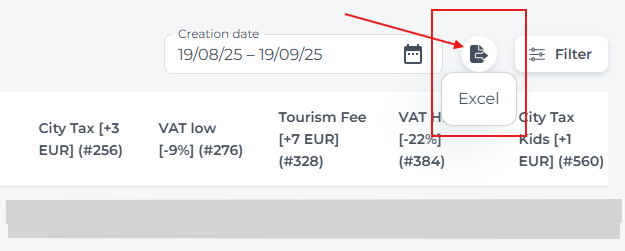
What is the Tax report
Tax reports are a key accounting tool, giving you a clear breakdown of all tax amounts per invoice so you can see exactly how much city tax, VAT, and other configured taxes have been charged. They help you verify that the tax calculated on each booking matches your tax rules and make it easy to compare net and gross values for auditing purposes.
Use this report when preparing your periodic tax return, checking that collected VAT matches what you need to remit, or when calculating the city tax you owe to local authorities based on actual departures. It is also useful for year-end closing, working with your accountant, or answering questions from auditors, as every tax line can be traced back to a specific invoice and booking.
The tax report can be found from the main menu under Reports:
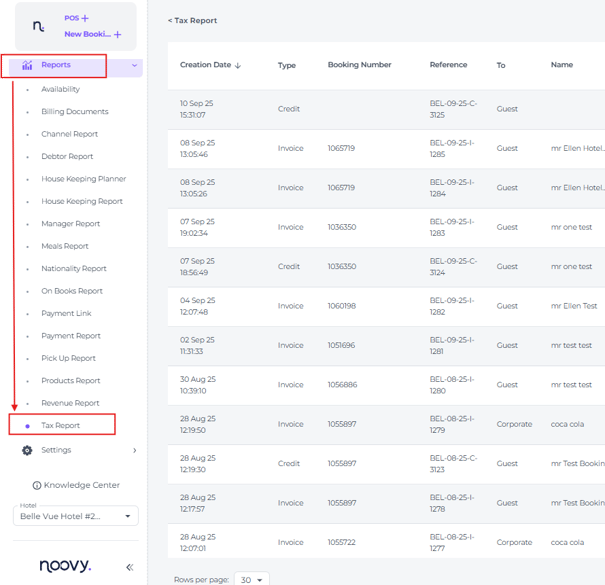
-
Select the creation date you want to receive tax report details for.
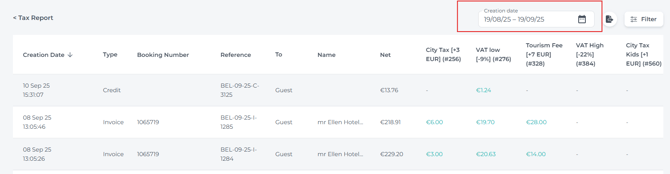
Tax Page explained per tab:

(enlarge the image by clicking on it and select 'Open image in new tab') 
- Creation date - Indicates when the invoices (on which the reported taxes are based) were generated.
- Type - Invoice or Credit (You can also include proforma documents, but taxes are not calculated based on these.)
- Booking Number - The reservation linked to the invoice.
- Reference - The document number
- To - The recipient listed on the invoice (Guest/ Corporate/ Channel etc.)
- Name - Full name of the payer: the person, company, or channel
- Net - The document total before taxes are applied
- Tax Types- All configured and active Tax Types in your PMS Tax settings
- Gross - The invoice or credit amount including the taxes.
- Payment Method - The payment method that was used when the invoice was paid for:
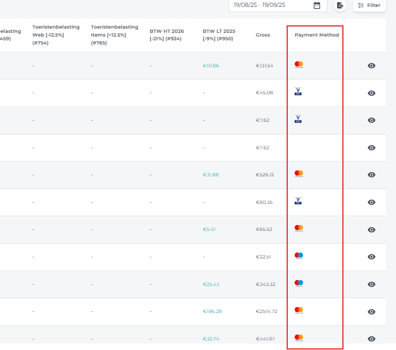
* In case of cash payments a banknote icon will be shown: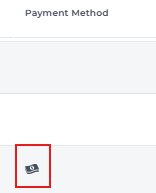
If you would like to open a specific invoice to view its details, click on the eye icon: behind it: 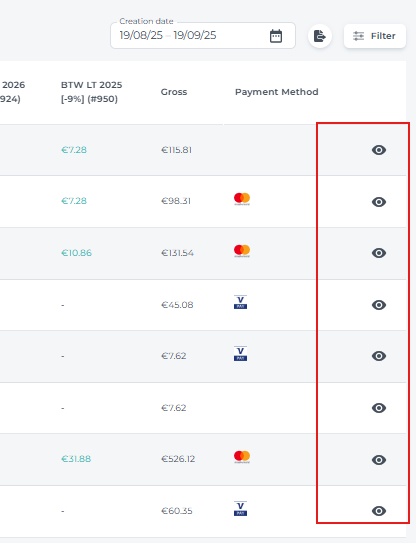
💡Tip:
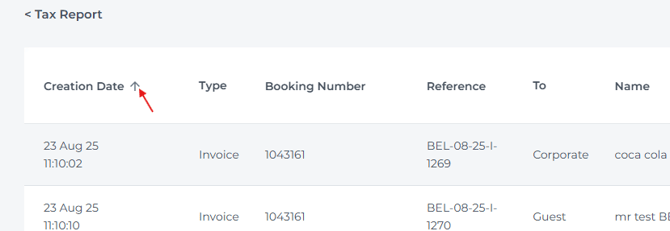
You can change the sort order of the creation date within the period you have selected in the date range of the tax report.
Simply click on the arrow behind the creation date header to change it:
Filter explained:
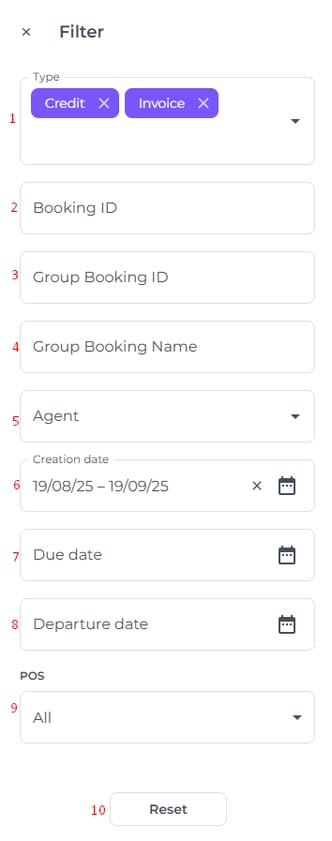
- Type - By default, credits and invoices are included in this filter. You can also select pro-forma documents; however, these will display any unpaid taxes as well
- Booking ID - Reservation number
- Group Booking Name - Name of the group booking
- Group Booking ID - Group reservation number
- Agent - OTA (Online Travel Agent) / Channel
- Creation date - Indicates when the invoices on which the reported taxes are based were generated
- Due date - the invoice payment due date
- Departure date - the reservation’s departure date linked to the invoice.
- POS - Point of sale: Selecting “Yes” will include all invoices created via the POS (cash register) that are not linked to a reservation.
- Reset - Removes all selected filter criteria