Hotel Settings
When you join Noovy, we set up your account and create a venue for you with the details provided by you during the first phase of the onboarding . One account can include multiple venues, allowing you to manage more than one property from a single account.
Hotel settings are where you configure your property’s core details, including its address and contact information, as well as registration, billing, and general settings. This article covers all the options available for configuring and updating these settings.
📞Please contact us:
If you are unsure about any change you want to make, please contact our support team first to avoid unintended consequences.
- You will find the hotel settings in the Main menu > Hotel:
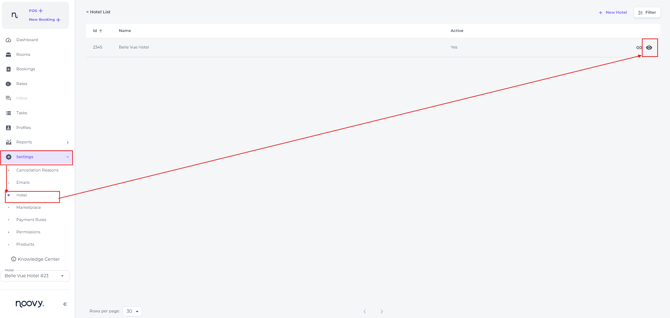
- You can make changes as needed in each tab
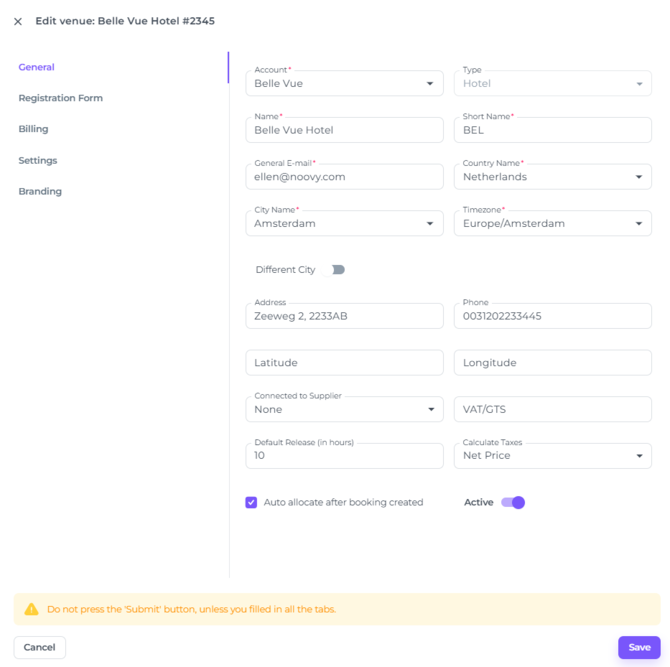
General Tab
-
Enter the base contact information of the venue (hotel), Vat details and other geberal details
-
Activate account toggle
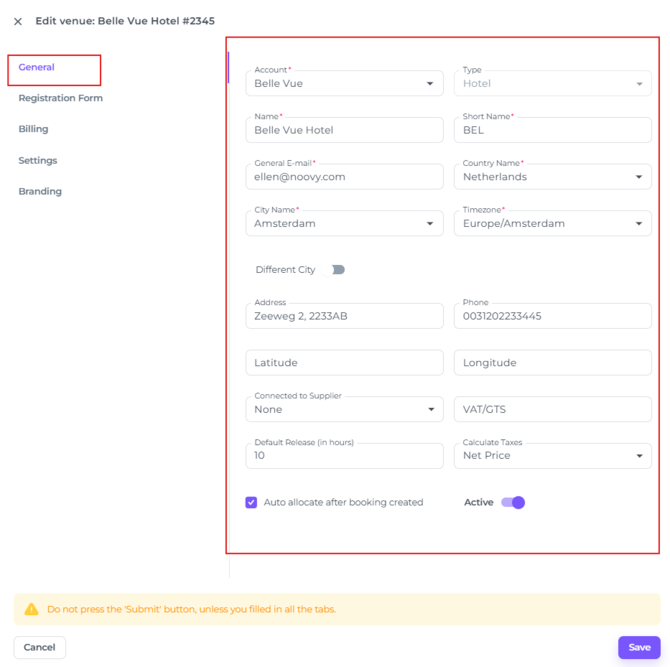
- The accommodation name, address, email address and phone number
- The venue's VAT number
- Longitude and Latitude coordinates (street addresses are inadequate for modern digital distribution, guest navigation, and automated operations)
- The Quote Bookings - release period
- The option to turn on/off the Auto Allocation
- Toggle to Activate/Deactivate the venue
Registration Form
-
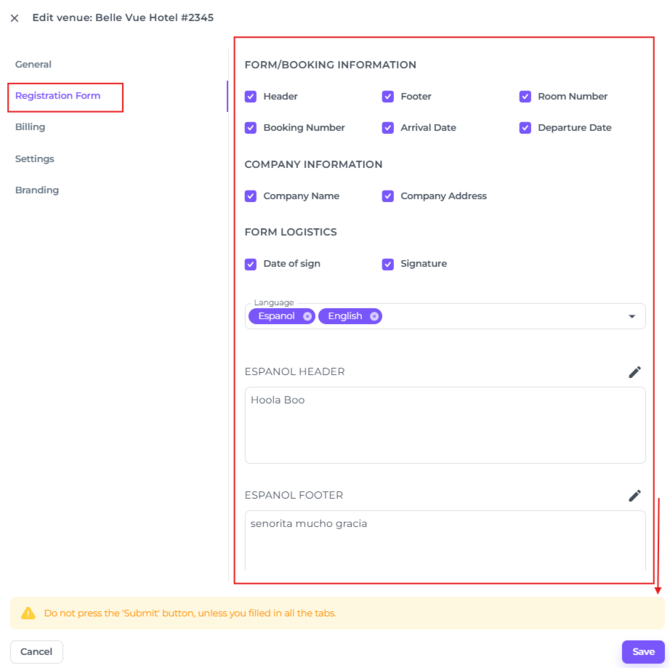
Choose which base information should be on the registration form and which you would like to leave out.
-
Enter the hotel policy for the Online Check-In
-
Activate / Deactivate the Pay Later option for the Online Check-In
-
Choose which booking, and company details appear on the guest registration form
-
Determine if a signature date and field should be on the form
-
Add a header and footer text to the registration form for each selected language
-
Enter your hotel policy for Online Check-in
-
Allow guests to choose the Pay Later option during Online Check-in and when this should be applicable
Billing
-
Determine accepted currencies, accepted payment methods and credit cards, invoice due date and automated finalisation of documents
-
Base Document Lay Out, fields to enter your header and footer
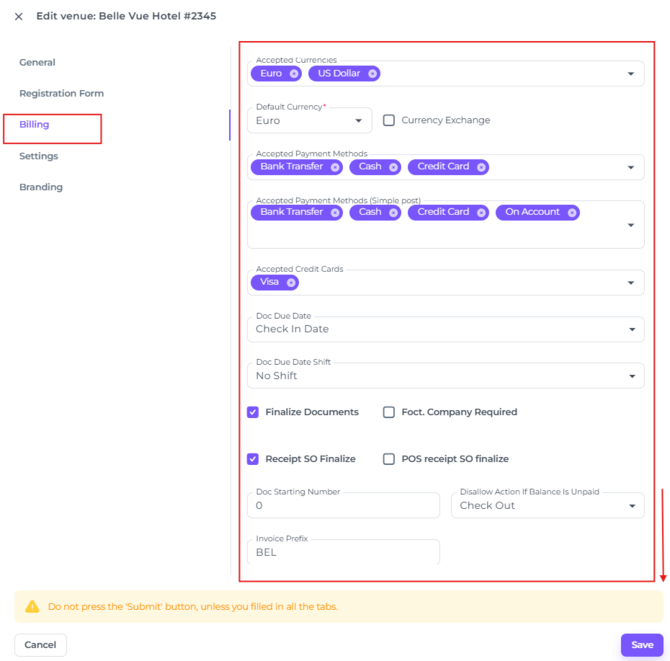
- Determine your accepted currency and accepted payment methods
- Determine the Due date for generating invoices
- Configure whether checkout prompts appear and whether the proforma is finalised automatically
- Set the starting number for your documents when you first begin using Noovy
- Determine which actions cannot be performed when there are outstanding charges
- Require a company profile to be attached to the reservation when FOCT (Free of City Tax) is enabled
- Allow Proformas to be finalised automatically after payment
- Allow Proformas to be finalised after payment in the cashier feature
- Allow extras to be added to the room bill only if a credit card is on file
- Allow amending Invoices
- Configure Header and Footer
Settings
-
Determine the Guest Data on both registration Form and New Booking feature
-
Various settings that determine how you would like the system to work
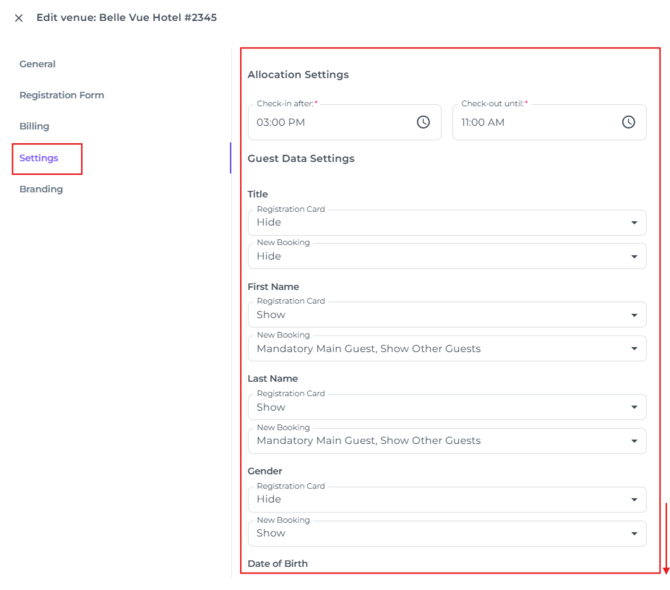
- Determine your default Check-in and Check-out times
- Configure which fields on the registration form are mandatory or optional for guests to complete
- Configure which fields are mandatory or optional when users create a new booking
- Enable to have the room status set to dirty automatically after midnight
- Choose to have products invoiced per room or per night. For example, a booking with 2 rooms for 3 nights will display 2 items for “Product Per Room” or 6 items for “Product Per Night” in billing documents.
- Track price changes and show them on the invoices.
- Enable or disable cash payments and, when enabled, set the maximum cash payment amount
Branding
Customise the look and feel of your Booking Engine, Online Check in and Kiosk
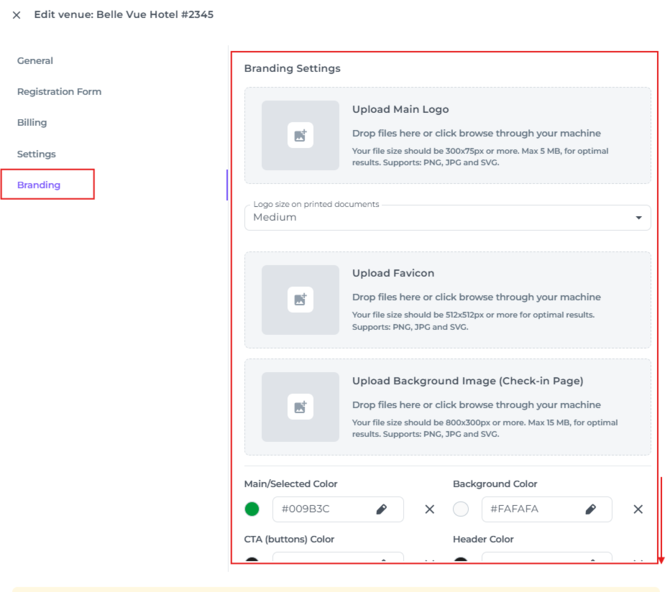
- Upload your Hotel photo for Booking Engine, Online Check-in Form & Kiosk
- Customise colours for all above
👉Check the article Branding: How to Customise your Booking Engine for in depth information