Check-in
Three locations from which check-in can be carried out:.
-
Booking Page
-
Room Calendar
-
Booking List
Via the Booking Page:
- When viewing the booking page for the arriving guest’s reservation, please ensure that a room has been allocated:
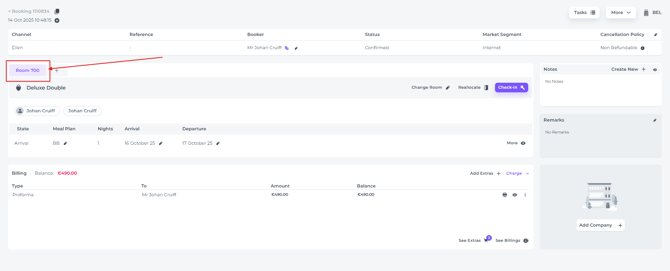
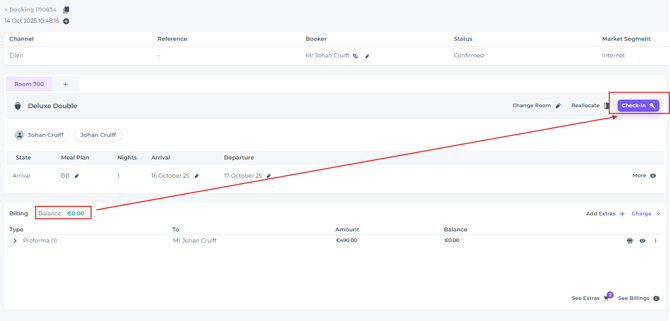
- Check whether there is any outstanding balance and take payment if required—in accordance with your hotel’s policy. In most cases, full payment must be settled before the room key is issued to the guest:
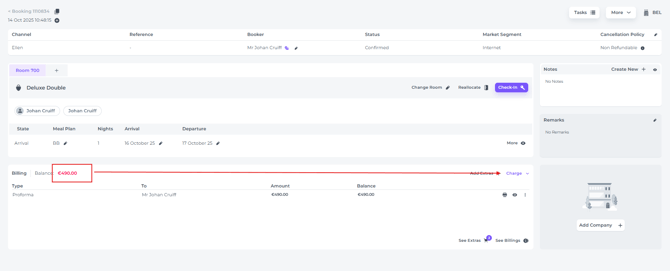
- Proceed with the check-in by clicking the Check-in button:
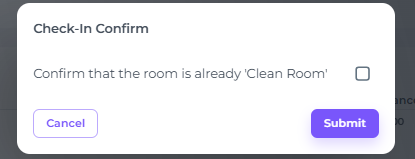
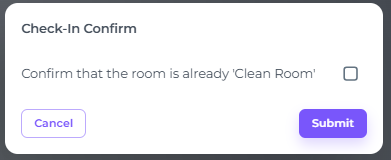
- If a pop-up appears asking you to confirm the room's status, please ensure that any room currently marked as 'dirty' has indeed been cleaned. If so, tick the box and click 'Submit':
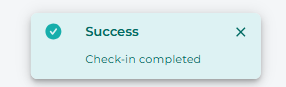
- The reservation will then be checked in:
Via the Room Calendar:
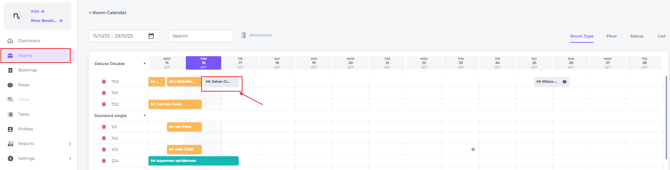
- In the main menu choose Rooms and click once on the reservation you would like to check in (the default colour for arrivals is grey)
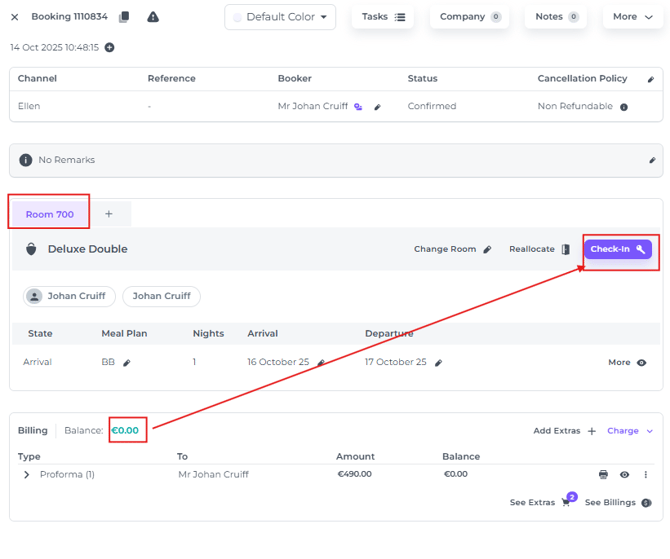
- The Booking pop up appears. It is similar to the booking page, yet a little more concise. Check if the reservation is allocated, and on 0 balance, then hit the Check-In button:
- The reservation will be checked in:
⚠️ Please note:
You cannot check in a guest if the room is marked as 'dirty' (indicated by a red dot next to the room number). To update the status to 'clean', click the red dot; it will then turn green.
Please ensure you have confirmed the room is indeed clean—either by a physical inspection or by consulting Housekeeping—before updating the status. Providing a guest with a room that has not been serviced is, naturally, to be avoided.
Via the Booking List:
- In the main menu choose Bookings and click on the tab Arrivals, which will show you all the arriving reservations for today:
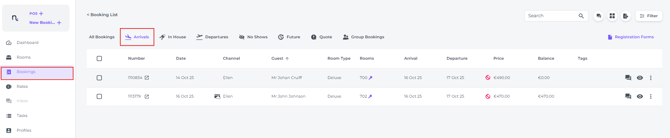
- Allocated bookings will display the room number and a key icon.
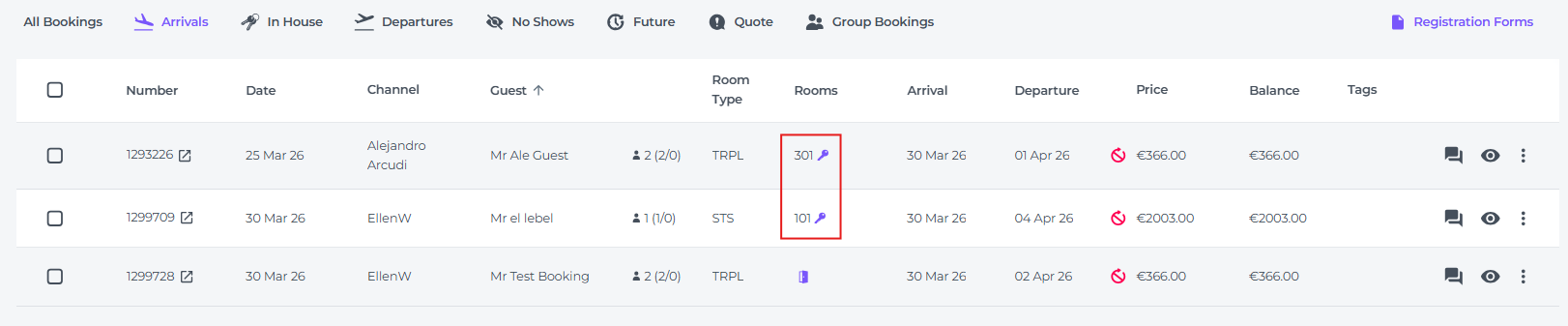
Unallocated bookings will show a door icon; allocate the booking before proceeding.
*See article "How do I allocate a room to a booking? "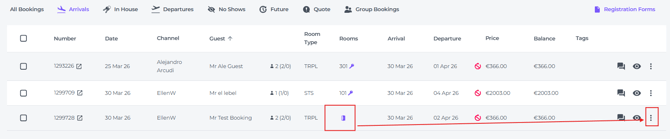
- Click on the key symbol in order to complete a fast check in:

- Or click on the More Action Button behind the reservation to Check-In:
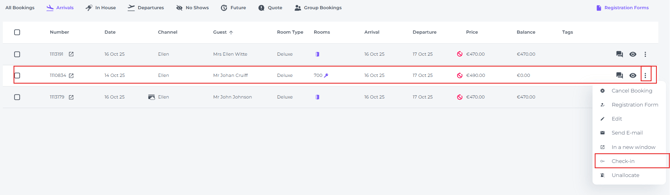
- If the room is on status Dirty, the pop up notification will ask you to confirm if the room is actually cleaned and tick the box - Submit:
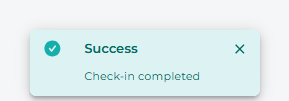
- The system will confirm your check in by showing a notification:
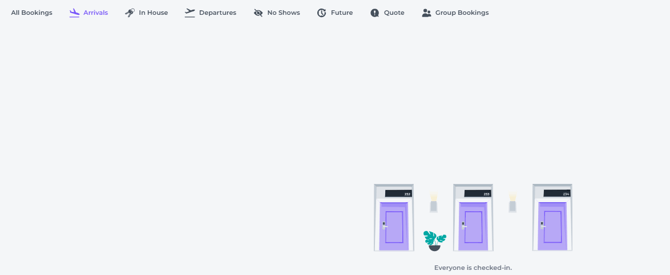
- If this was the last reservation left to check in, the arrival list will be empty (pls refresh your page):
🔆TIP:
The main menu will lead you to anywhere you wish in the system.
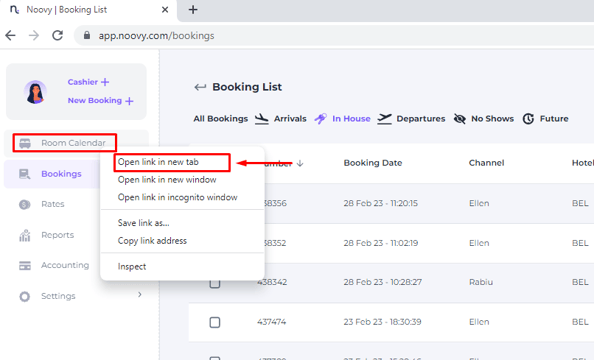
You can open multiple tabs by clicking on the desired tab with your right mouse button. Choose "Open link in new tab" which allows you to navigate between for example the Booking list and the Room Calendar:
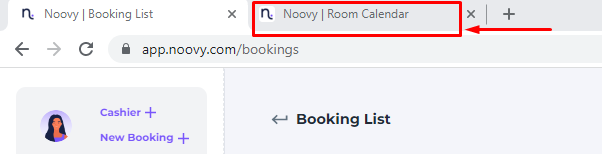
A new tab will open in your browser, clicking on it will open up the desired part in the system.
You can open up multiple tabs at once. It will be easier and quicker to navigate between tabs.
Working has never been so efficient! 😀