Proforma's that are finalised will become Invoices.
Once a Proforma is finalised converted, it is treated as a legal tax document. For compliance and audit reasons, Invoices are not allowed to be changed afterwards, which is why the system blocks any direct edits to these documents (such as changing items, amounts, tax, or payer details). If anything is incorrect on an Invoice, it must be corrected via a credit and, if needed, a new document.
As long as Proforma's are not yet finalised, you keep full flexibility.
Multiple open Proforma's within the same reservation can still be combined into one new Proforma. This is helpful, for example, when a guest or company requests a single summary document for their entire stay, or when you initially split charges across several drafts and later decide to consolidate them.
Combining multiple Invoices (finalised Proforma's) in the reservation into one total Invoice, you first need to reverse the existing Invoices. In practice, this means that each applicable Invoice must be credited, so that the charges are cancelled out correctly in your financial history. After the credit notes have been created and the balance is reset, you can manually create a new, combined Proforma or Invoice that includes all relevant items and reassign any existing payments. This workflow ensures that your billing remains transparent, traceable, and fully aligned with legal and accounting requirements.
Steps to delete existing invoices and combine them into one:
- In the below screenshot there are 3 invoices which as an example we will combine into one invoice:

- Click on the three dots (more Action Button) behind each invoice to credit each of them:

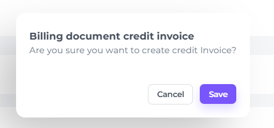
- The system will prompt you to hit Save or Cancel, to allow you to double check your action first. Hit Save to continue if you are sure crediting the invoice:
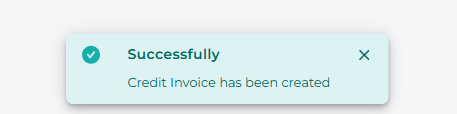
- A pop up will appear showing you whether the credit was created:
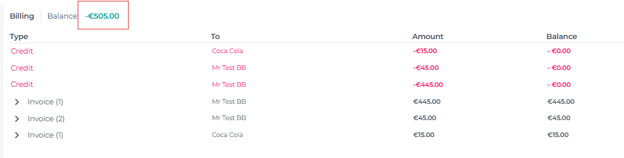
- Now one of the three invoices will be displayed as credited, please continue crediting the others:

- When invoices were already paid, logically the credits will result in an overpaid balance, as there is no Proforma/Invoice :
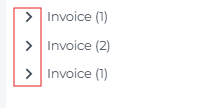
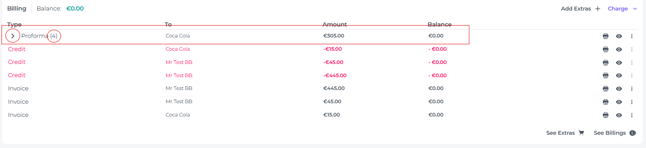
- The arrow in front of the invoice will mark there is a payment and how many payments per invoice (amount between brackets) :
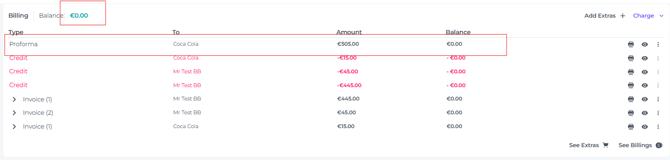
*After the New (combined) Invoice will be created this balance should be back to '0'.
To create a new, combined invoice:
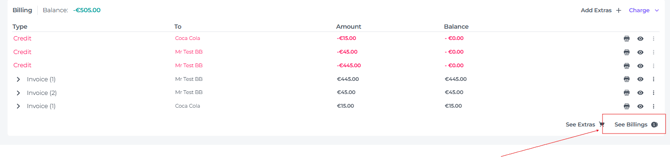
- Go to See Billings in the billing section:
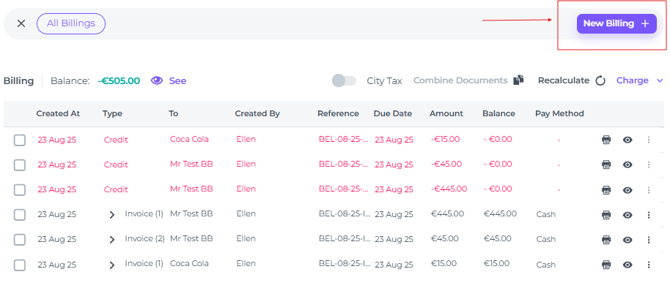
- In the following pop-up screen, click on 'New Billing' to create a new invoice :
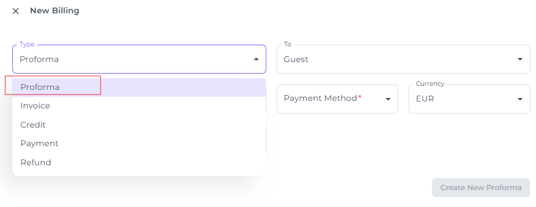
- You can select “Invoice” directly in the Document type field, but we recommend creating a Proforma first so you can verify all details before finalising.
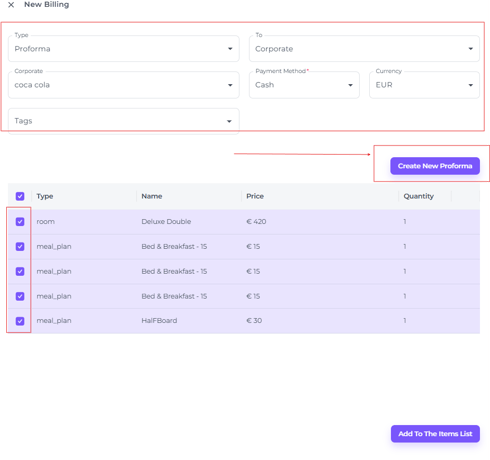
- Once all the fields are filled out (👉See article 'How to create a Proforma' as well for more details), select all the items that need to be on the new invoice (all items from the previously credited invoices) and hit Create New Proforma:
- A new Proforma will be created, resulting in a balance of '0' again:
☝️Please note
All Payments are still attached to the old invoices, you can move them all to the new invoice:
-
Click on the arrow in front of the old invoices. By doing so the payment will be shown:

-
By clicking on the three dots behind the payment you can select 'Switch Proforma/Invoice' to attach the payment to the new Invoice:

-
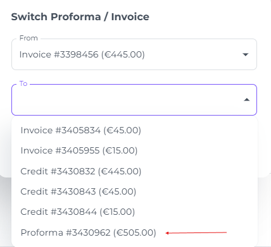
The system will prompt you to choose the correct Proforma/ Invoice to choose from and to attach the payment to.
In this case the only active document is the combined Proforma and therefore easy to differentiate and select (this is another strong reason to start with a Proforma rather than selecting Invoice immediately):
-
Do this for all payments that are still attached to the old invoices and you will see that the active Proforma will have all payments attached afterwards:
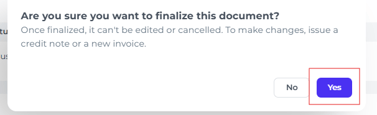
- Double check the new Proforma on the correct items, right payer and address details and attached payments . If all is correct, you can finalise the Proforma:
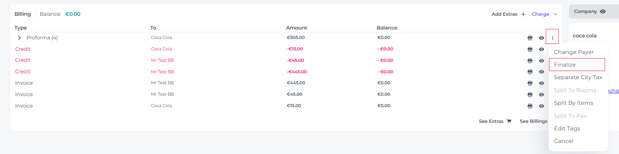
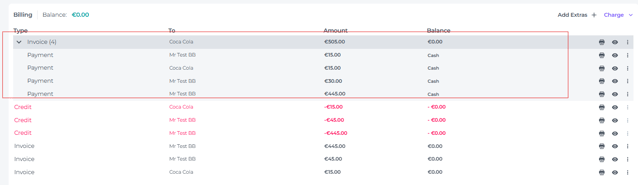
- The result is a clean combined Invoice with all items and all payments attached:
- Open the invoice by clicking on the eye symbol behind:

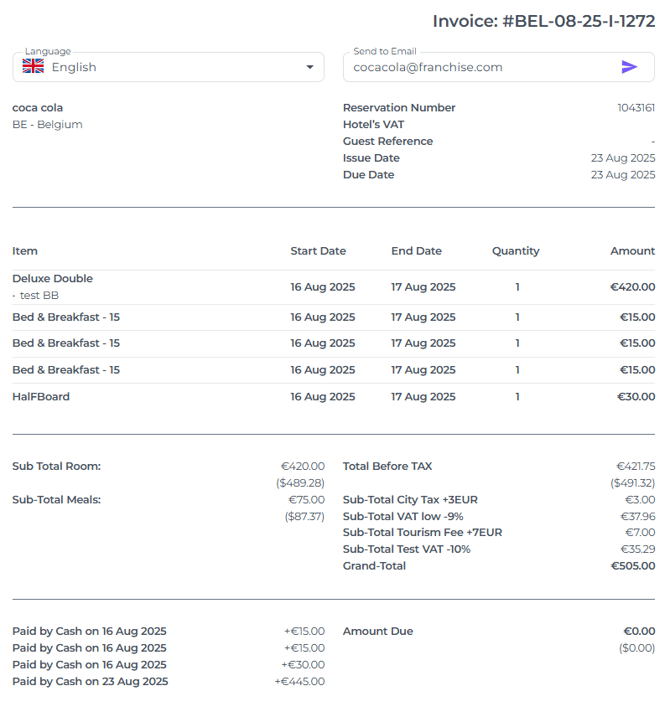
- View, print, or send the invoice per email:
💡Tip:
Make sure you take your time and focus when dealing with creating/cancelling and crediting documents. If done incorrectly it can result in mistakes that are not easy to fix.
☝️If you are uncertain at any stage, reach out to the Support Team before the financial documents become difficult to adjust.