The Registration Form
The default Registration Form template in Noovy includes a predefined set of fields that are shown when you open or print the form.
You can customise the form as desired:
-
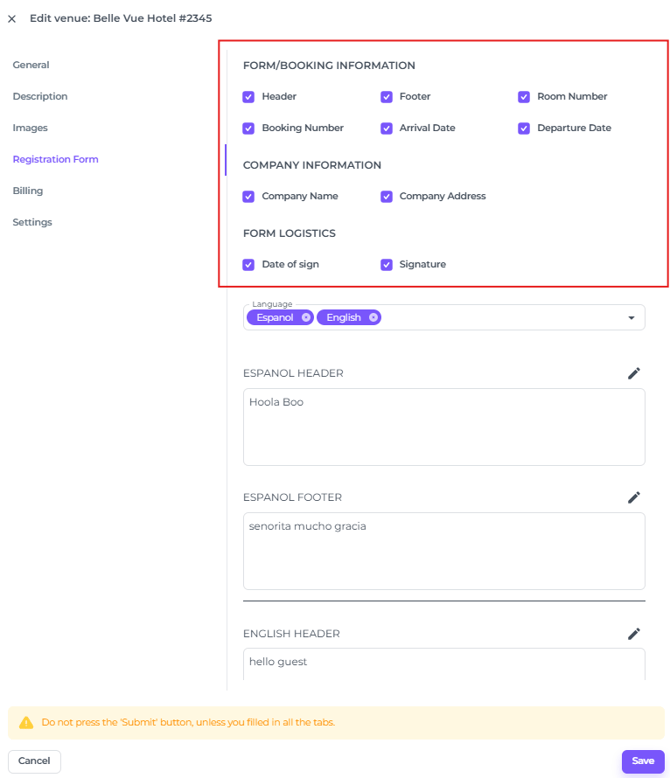
If certain guest details are not relevant for your property, you can simply hide those fields from the registration form.
-
You can add a header and/or footer, and create versions in multiple languages if needed to make it a more personal guest experience.
-
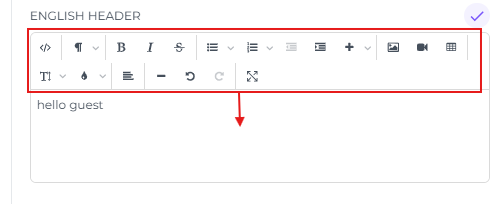
Both the header and footer are fully customisable and can be edited much like a standard word processor.
Steps to take in order to customise your registration Form:
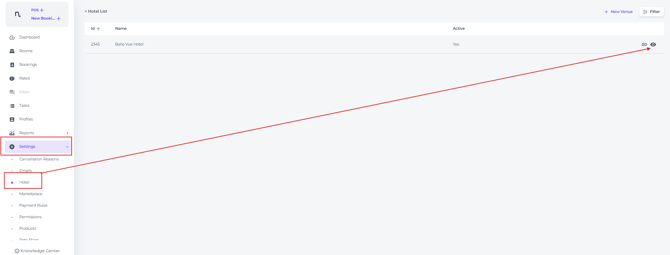
- To open the settings for the Registration Form choose Settings > Hotel > Click on the Eye icon:
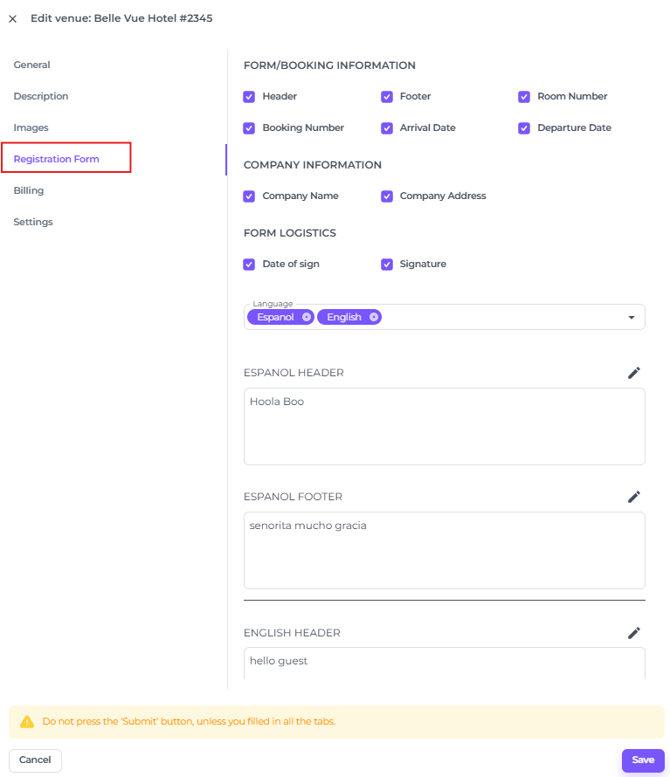
- Click on the tab Registration Form:
- To choose which fields you want to appear on the form, select or deselect the checkboxes in front of each field:
- If you want to add headers and/or footers text, you can decide whether they should appear in multiple languages (the system will not translate this content automatically, so you will need to enter the text yourself in each language you want to use).
*Keep in mind that the more text you add, the more pages your registration form may use: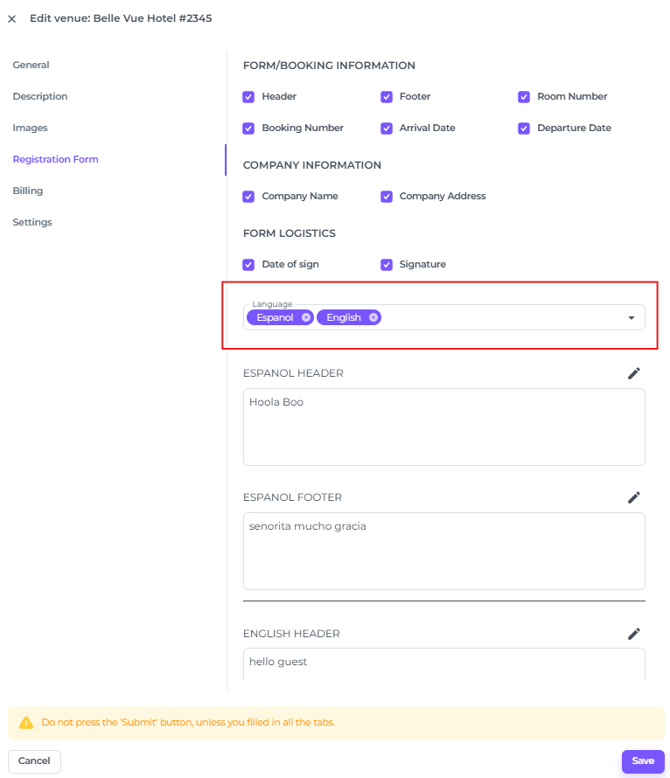
- To write a header or footer click on the Pencil icon next to it:
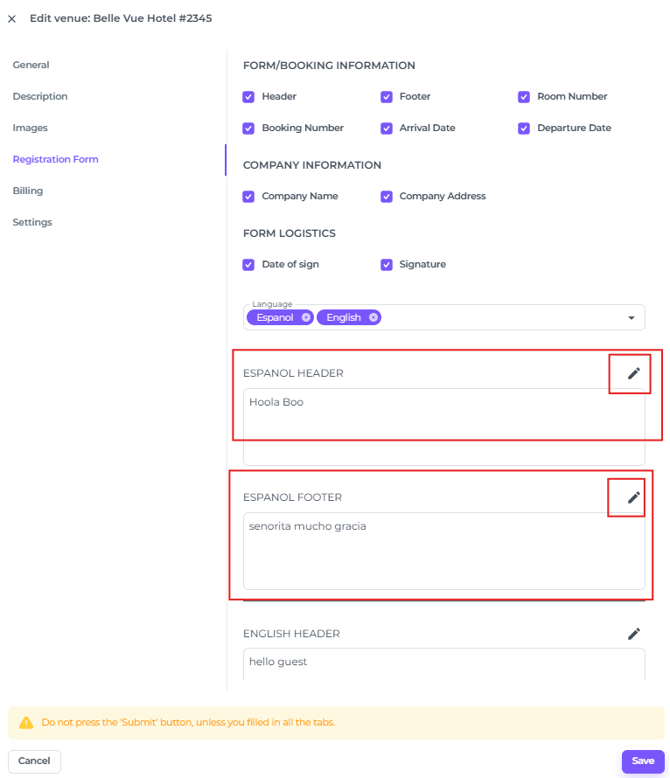
- By doing so you can write a text, customise the font, add bullet points, underlining, hyperlinks, images etc. :