Reallocate
When a booking is allocated, either automatically or manually, and you need to move it to a different room within the same room category (so reallocation, not changing room type) , there is one important distinction to keep in mind: is the booking state still on Future or Arrival, or has the guest already been checked in?
This matters because the reallocation process can differ depending on the booking state. A booking that is still on Arrival can usually be adjusted more easily before the guest has entered the room, while a checked-in booking may require extra care to ensure the room move is recorded correctly and all related details remain accurate.
Before making any changes, always confirm the current booking state so you can follow the correct process.
Reallocation is different from Changing Rooms. Changing Rooms involves moving the booking to a different room category. Read this article to learn more about that option.
Reallocation of a booking with state Future or Arrival
-
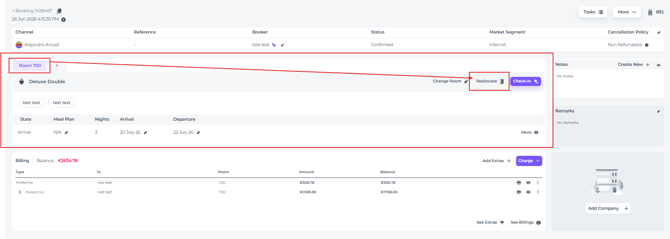
On the page of the booking you'd like to reassign, go to the Room section and click Reassign:
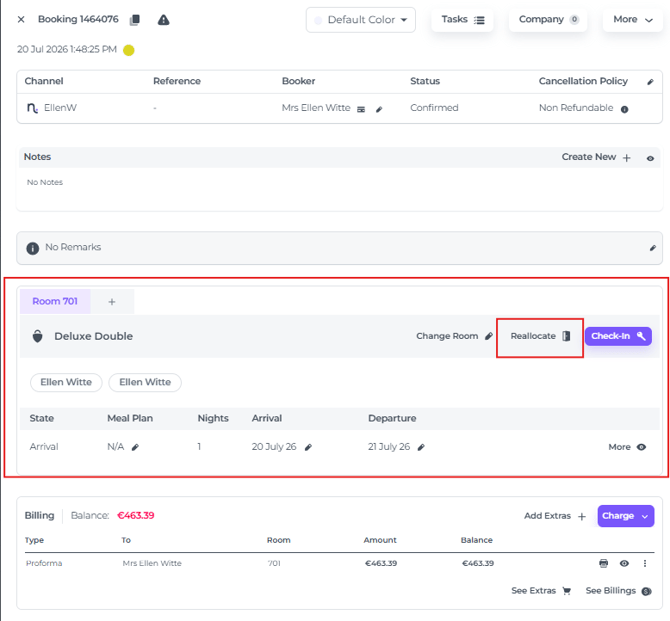
You can also find this option in the Room section of the booking window, where it looks slightly different:
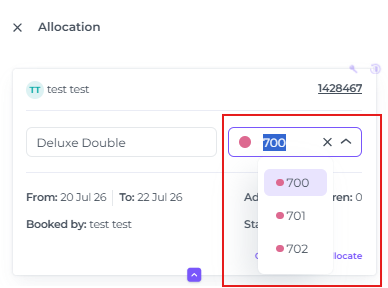
- The system will show you the available rooms, whether clean or dirty, for you to choose from:
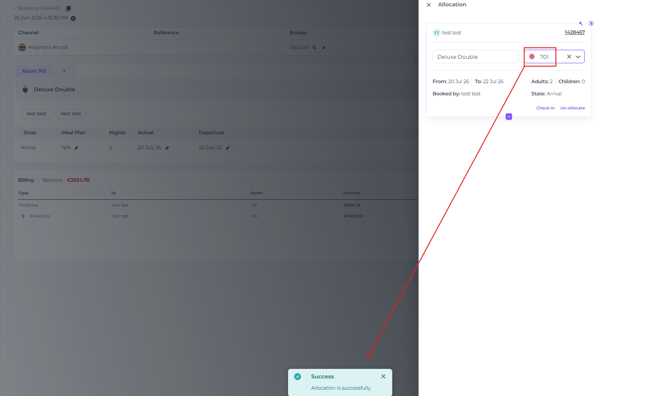
- Simply select a different room number, and the booking will be reassigned within seconds:
- If no rooms are available, you can check whether another booking can be unassigned to free up the room you need. The unassigned booking can then be moved to the room you've just freed up:
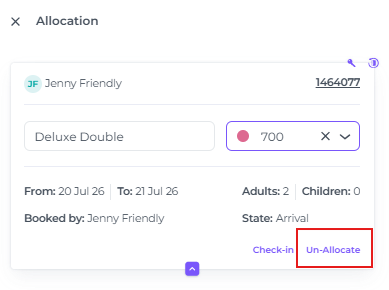
After the booking has been reallocated, the original room will automatically be set to the Housekeeping status Dirty if it was previously marked as Clean. If you are certain the guest has not entered the room, for example because the room change was made during check-in or several days before arrival, you can change the status back to Clean. Read this article to learn how.
Reallocation of a booking with state In House
When a reservation has already been checked in, whether the guest has been in the room for just a minute or for several days, you may still need to reallocate it. This could be due to an error, a guest request, or technical issues in the room.
Scenario 1 - Reallocation on the same day as arrival:
The steps are the same as those described above, but please note that the booking will need to be checked in again.
Scenario 2 - Reallocation after arrival day
The guest has already stayed in the room for at least one night. In this case, the reservation will be split into two parts: the original room stay and the reallocated room stay. The related financial documents will also be split accordingly.
Reallocate as above and a pop up notification will appear asking you if you would like to split the booking. 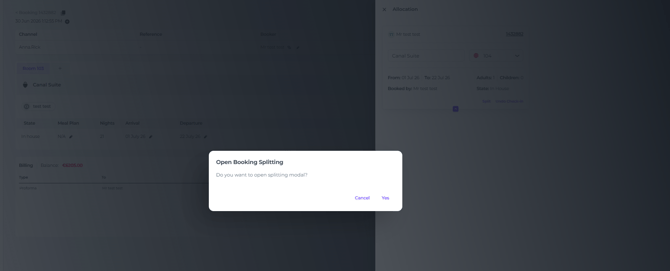
-
If chosen Cancel, the reallocation will be cancelled and no action was taken.
-
If you choose YES you can choose the room number desired click Reallocare Room and this will be done accordingly within seconds:
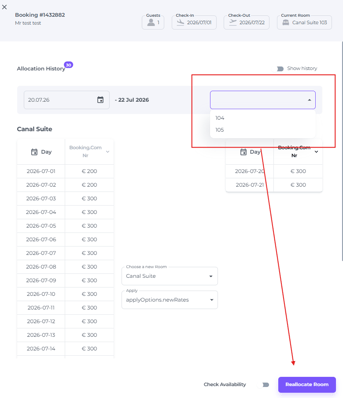
- The reservation is splitted:
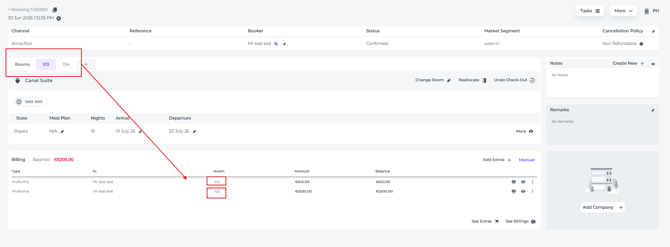
- The original room now has state Stayed:
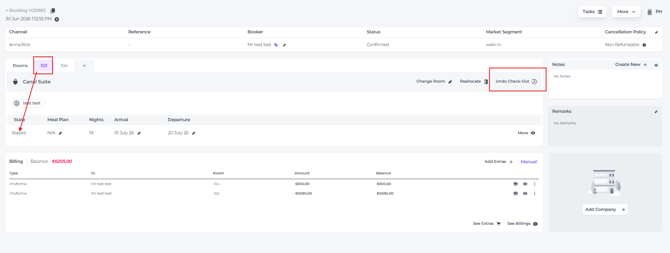
- ⚠️The new allocated room is on Arrival and should be Checked In!
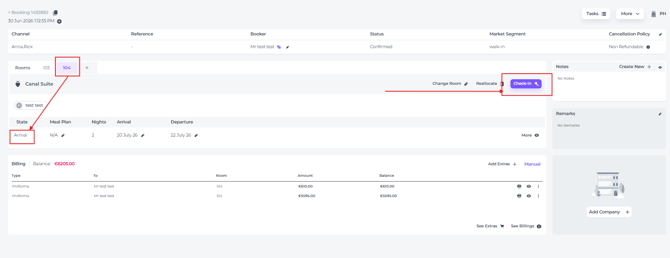
The Housekeeping status of the original room is automatically set to Dirty and should remain that way until Housekeeping has inspected and cleaned the room, as the guest has already stayed in and used it.