Creating a new booking requires a balance between speed and functionality. You might not want to spend too much time entering information, but it is also important to have the essential details in the booking before confirming it.
Every hotel has different requirements, so you can tailor the booking process to suit your team’s workflow. Decide which information should be mandatory and which details can be added later. This helps staff create bookings quickly while ensuring that the most important information is always captured from the start.
The steps
-
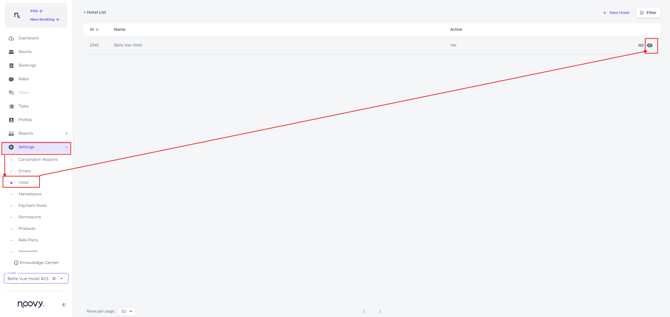
The configuration of the New Booking fields can be accomplished in the Hotel Settings:
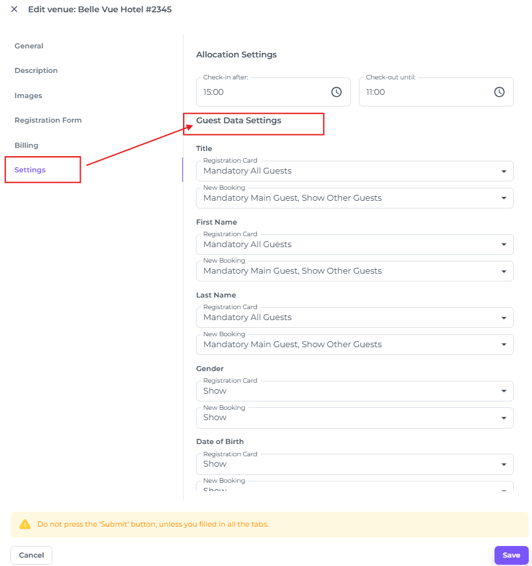
- Choose Settings from the options and locate the Guest data settings section:
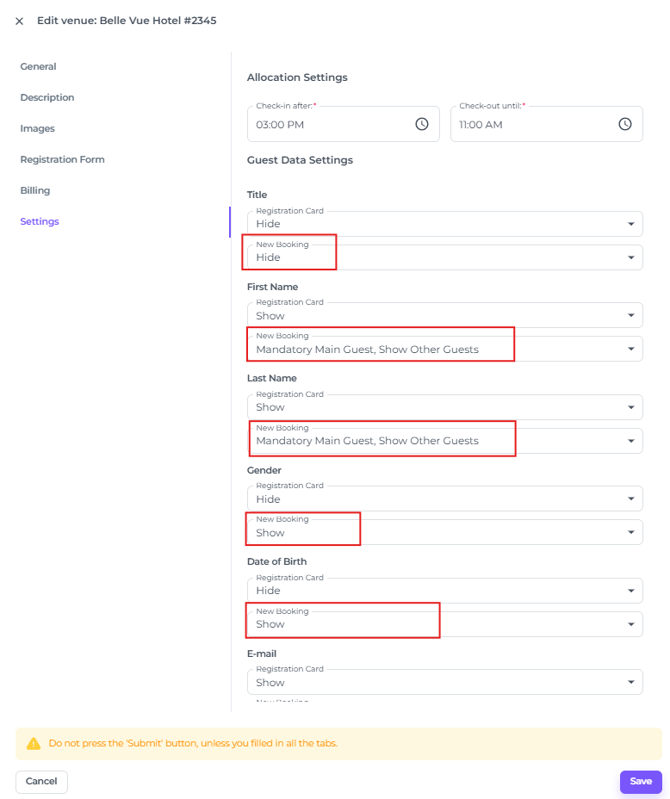
- To configure the fields open the dropdown menus for the New Booking Fields:
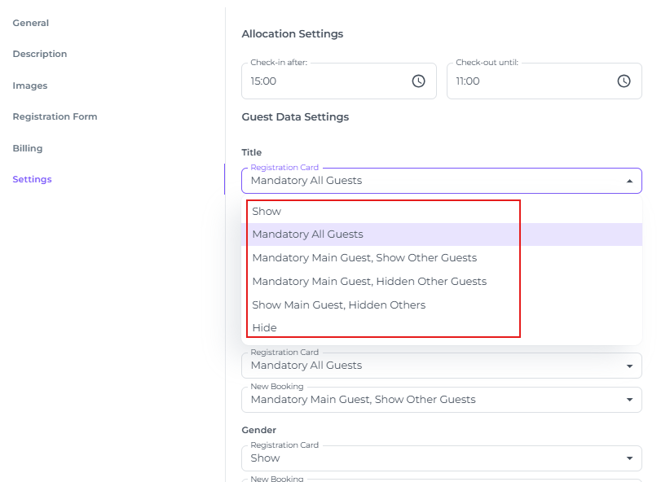
- The dropdown menu explained:
-
- Show or Hide
This setting determines whether the field is visible to your guests. - Mandatory All Guests
Sets the field as a compulsory requirement for every guest in the booking. - Mandatory Main Guest - Show Other Guests
Makes the field mandatory for the lead guest while displaying it as an optional field for others. - Mandatory Main Guest - Hide Other Guests
Requires this information from the lead guest only; the field remains hidden for all other guests. - Show Main Guest - Hidden Others
Displays the field to the lead guest as an optional item while hiding it entirely from other guests.
- Show or Hide
-
Choose our preference for each component and hit Save. The changes will be immediate.