Two types of comments
We differentiate two types of comments:
-
Remarks
These are added during the booking process when a reservation is made via online channels. For example: if an Online Travel Agency (OTA) includes details such as a Virtual Credit Card (VCC), or if the guest shares specific comments whilst booking, you will find those under Remarks.
-
Notes
For internal use only. Any comment that is necessary to avoid misunderstandings or to point out specifics in regards to payment, guest needs, etc.
-
Guests will not be able to see these notes; however, always remain polite and professional.
-
NOTES
Where can I find notes to view and/or edit? :
- In the Booking List Note icon
- In the Booking pop-up screen
- In the Booking Page (reservation itself)
1 - Open the Notes feature in via the Booking List
- Via the main menu choose Bookings and click on the Notes icon behind the concerning booking:
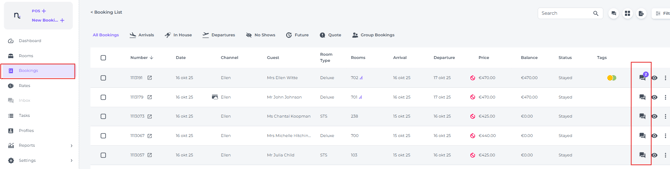
*If the Note icon displays a number, this indicates that one or more notes have already been attached to the booking.
2 - Open the Notes feature in the Booking pop up screen
The Booking Pop up screen can be opened via the Booking List when clicking on the eye icon behind the bookings: 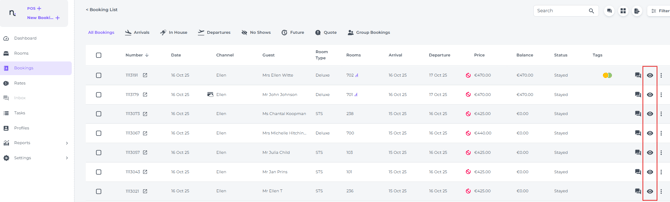
Or when clicking once on the concerning booking in the Rooms Calendar: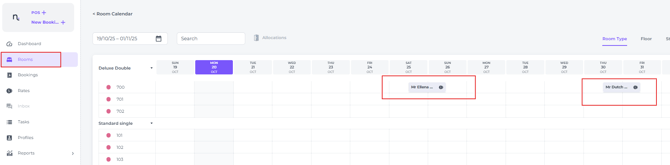
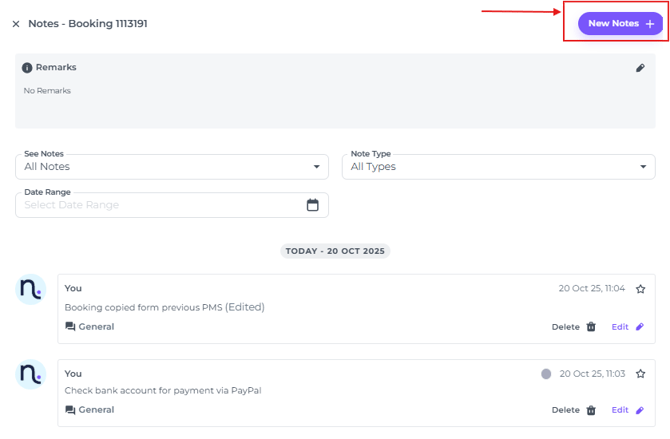
- In the Pop Up screen the Notes section is located on the top right corner:
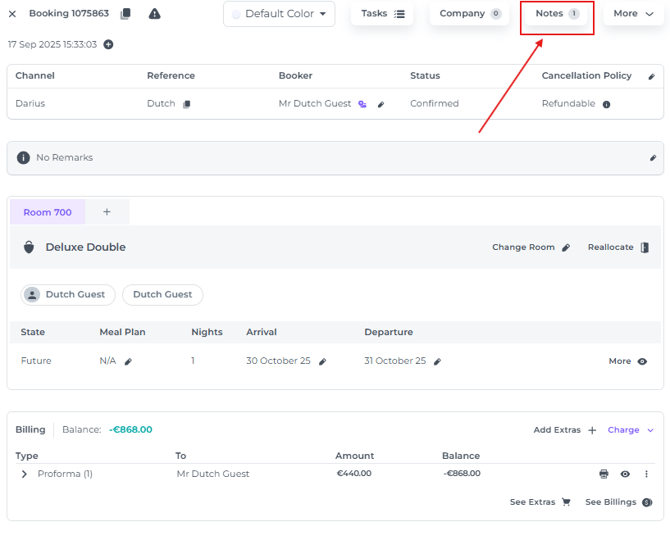
- Click on New Note +:
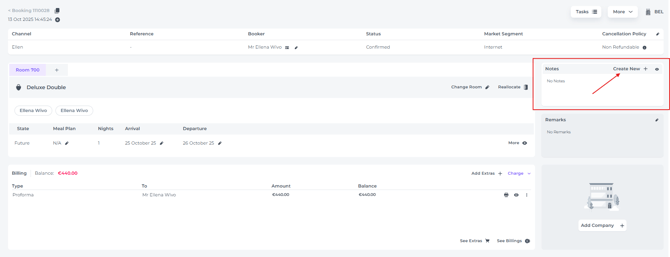
3 - Open the Notes feature in the Booking Page (reservation itself)
- Click on Create New to create a Note:
Creating a Note:
No matter which of the three options above you use to access the Notes feature, the process for creating a note is identical.
Follow the steps below once you reached the pop up screen and start creating a Note:
-
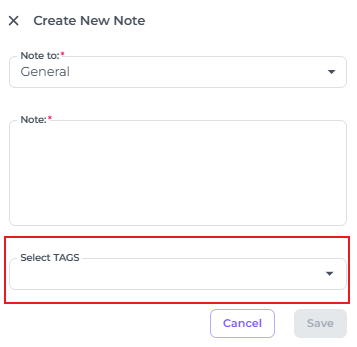
In the Pop up screen that appears choose the use the Note To field to determine to what type of user it is addressed to:
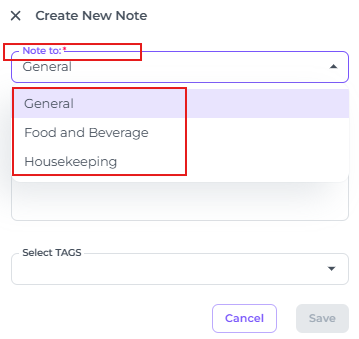
- General – For any system user to see
- Food and Beverage – For kitchen/bar/breakfast staff (e.g. allergies, dietary notes)
- Housekeeping – For the housekeeping team (e.g. cleaning requests, extra towels)
- In the Note section, type the concerning message:
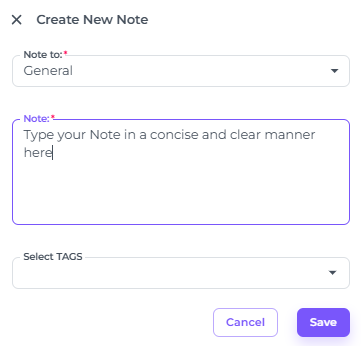
- If desired apply a Tag in the Tag field — these are especially useful if you want to filter or organise your notes later:
💡TIP:
Check our article "How to use Tags" for more information on Tags.
REMARKS
Where can I find notes to view and/or edit? :
- In the Booking pop-up screen
- In the Booking Page (reservation itself)
- Via creating a new Booking via the NEW BOOKING BUTTON
1 - Open the Remarks feature in the Booking pop up screen
The Booking Pop up screen can be opened via the Booking List when clicking on the eye icon behind the bookings:
Or when clicking on the concerning booking in the Rooms Calendar:
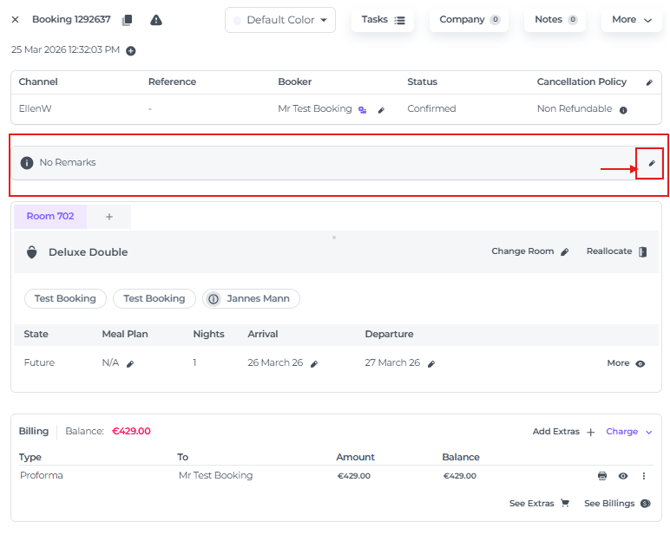
- In the pop-up screen Remarks can be found under the 'general reservation details'
- Whilst this field is primarily intended for OTA-related comments (from either the channel or the guest), there is an option to edit them. Use the pencil icon to do so. However, editing remarks is not recommended. Please use Notes to create any internal comments.
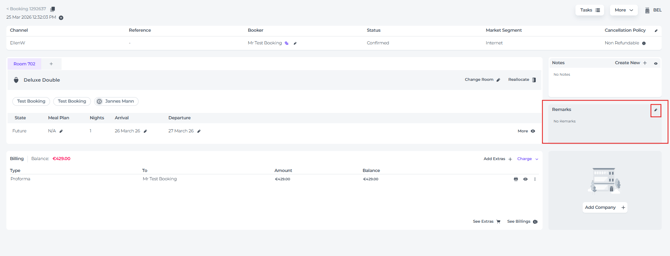
2 - Open the Remarks feature in the Booking Page
- Although the field can be edited: again, try to refrain from doing so as this is primarily intended for OTA comments.
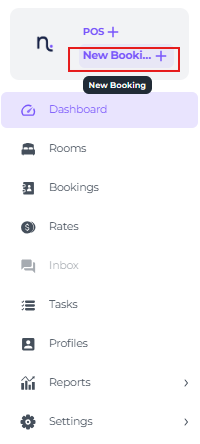
3. Via creating a new Booking - the NEW BOOKING BUTTON
-
When creating a New Booking manually, one can add Remarks in step 3 of the booking process:

📝Please Note:
Since this is a manual entry, leave this blank unless you are migrating a booking from an OTA or a previous PMS.