We are introducing the two-factor authentication (2FA) to make logging in more secure.
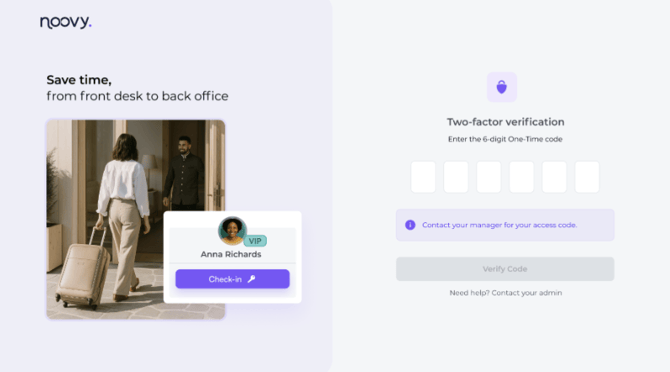
Clients can enable two-factor authentication to prevent users from logging in to Noovy on an unknown device without a one-time code (OTP) provided by a manager.
The 2FA will further strengthen the security of Noovy and your account & Data
How it works once enabled?
-
When 2FA is enabled in your hotel settings, Noovy displays a QR code that must be scanned with the Google Authenticator app.
⚠️ Important:Because the QR code is shown only once, we advise saving it securely (!) as a screenshot or photo and share it only with authorised managers responsible who will provide a verification code to users logging in from a new device.
🚩BE AWARE THAT IS THE CODE REACHES UNAUTHORISED PERSONS, IT COULD LEAD TO MISUSE
-
Scanning the QR code on the Google Authenticator app, it then generates the 6-digits one-time passwords (OTPs) required when users sign in from a new device. ☝️Please note: this code will be valid for a mere 1 minute.
-
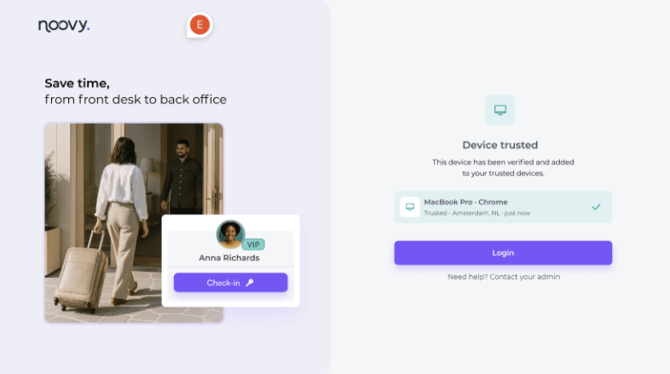
The new device will become 'trusted' afterwards and will not require the code to be entered again upon logging in.
-
Verification will be required again if the trusted devices are removed or 2FA is reset for the account.
-
Currently, all trusted devices can be removed at once. At a later stage it will also be possible to remove individual devices.
Soon, you’ll be able to enable 2FA directly in your PMS. If you’d like to activate it now, please contact our support team. They’ll be happy to help.
Enabling the Two-factor authentication for your account
The two-factor authentication is disabled by default. To activate follow the below steps:
-
Download the Google Authentication App on your mobile phone. You will need this to scan the QR code provided by Noovy
Android/iOS
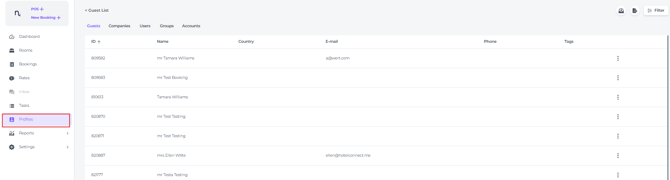
- Go to the page Profiles via the Main Menu:
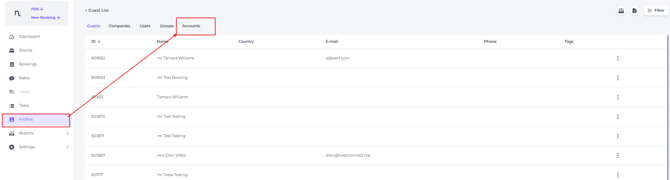
- Select tab Accounts:
- Edit account by clicking on the pencil:

- 'How it works' will give the user some insight in the logic.
Switch the Two-factor Authentication toggle: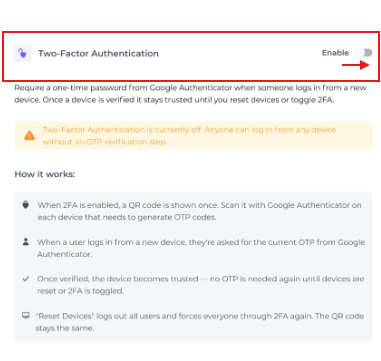
- A pop up appears with instructions to set up the Google Authenticator first
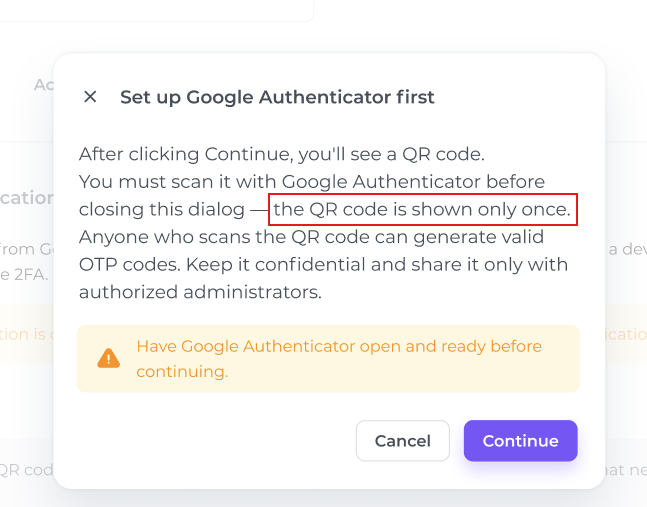
- Click Continue
Another pop up will be displayed with the QR code and the following instructions: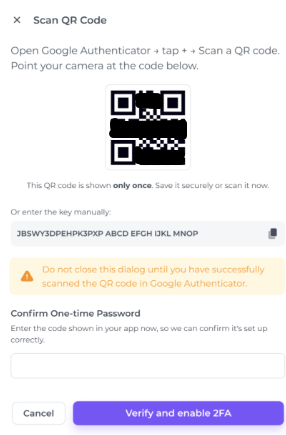
- Open the Google authenticator
- Tap +
- Scan the QR code by pointing your mobile camera to the QR code on the Noovy screen, or manually enter the key which is provided in the pop up
- The QR/secret is displayed only at this moment and is not available later through the UI. Save the QR code as a screenshot or photo and share it only with authorised administrators (managers) who are responsible for providing verification codes to team members logging in from a new device.
- Enter the OTP provided by the authenticator app
- Click on Verify and enable 2FA to enable the two-factor authentication for your Noovy Account
- Once 2FA is enabled, your account settings will show that it is active:
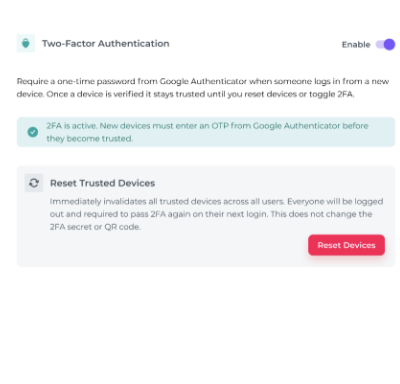
Reset Devices
To invalidate all trusted devices, click Reset Devices. All users will be logged out immediately and on next login each user will have to pass 2FA to re-trust their device.
Reset does not change the 2FA secret/QR — no re-scan is needed.
At a later stage, it will also be possible to remove individual devices.
Signing into Noovy from a new device
After 2FA is enabled, users signing in from a new device must enter the current one-time password (OTP) provided by the manager who will obtain this from the Google Authenticator.
Once the device is trusted, no further OTP is required unless the trusted devices are reset or 2FA is disabled and re-enabled.
🚩Deactivating 2FA if you have security concerns
If you ever have concerns about your PMS security, for example, if you lose the phone linked to your OTP service, 2FA must be disabled and re-enabled to generate a new QR code. All devices will then need to be trusted again with a new OTP.
You can of course always contact Customer Support to assist you.
☝️Please note
If you clear your browser cookies on your device, you’ll need to complete two-factor authentication again. You will be prompted to login again with the 6-digits OTP code.