The Rate Calendar offers two distinct layouts. Both views offer similar functions, albeit displayed in a different way.
-
List View - Mostly used by Channel Managers
-
Calendar View - If you are more focussed on Revenue Managemet, you might prefer this view.
LIST VIEW
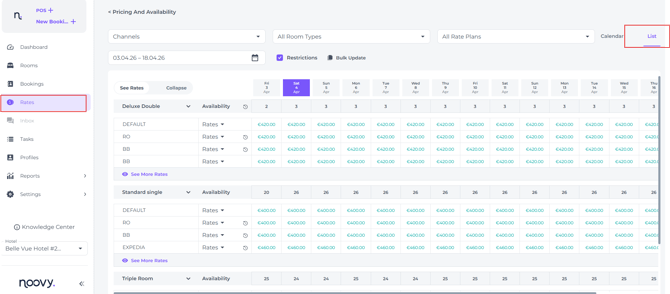
List View in detail:
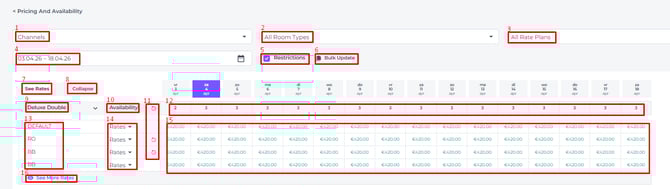
- Channels - Select a channel to view its specific rates and availability.
- Room Types - Select the room type(s) you wish to view on the calendar.
- Rate Plans - Select the room type(s) you wish to view on the calendar.
- Date Range - Choose the calendar display period.
- See Rates - Switch the toggle to view pricing on the calendar.
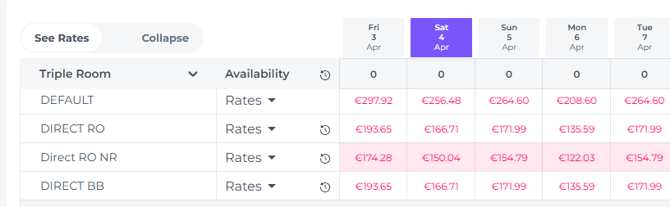
Switch between rates and availability by clicking om the little arrow: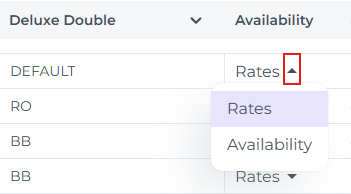
- Restrictions - Tick this box to display the restrictions you have set.
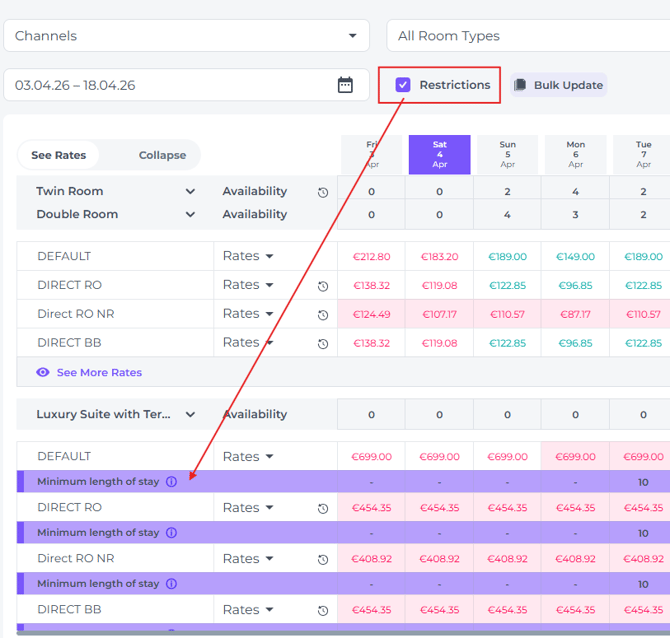
- Bulk Update - Click Bulk Update to manage rates, availability, and restrictions in bulk.
- Visible Rate Plans - Rate Plans will be shown when the toggle 'See Rates' is switched to Rate Plans.
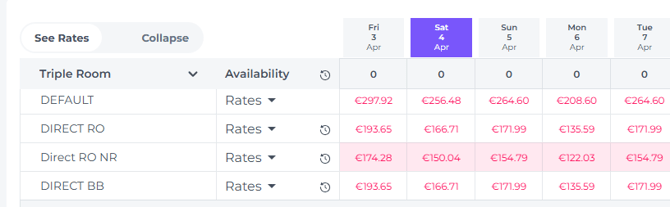
- Collapse - Rates will be hidden and only availability can be viewed when the toggle is switched to Collapse.
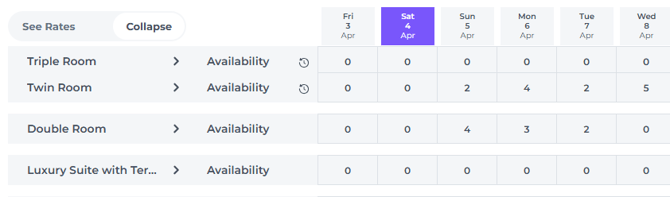
- Room Type - Shows the Rate Plans by Room category.
- Availability - Shows the to sell room availability in 12
- Affected by - Indicates if and by which room this room type's pricing is influenced.
- Rooms available - Displays the net availability, accounting for sold rooms, out-of-order units, and any manual adjustments.
- See More Rate Plans - View additional rate plans for this room type by clicking here.
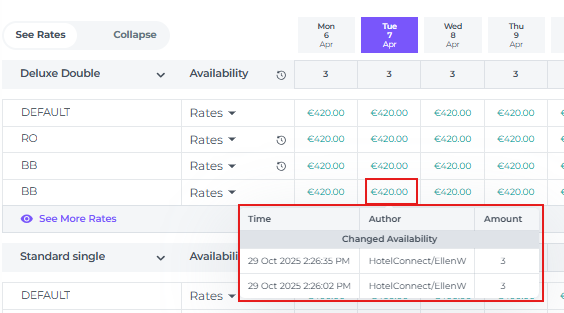
Logs:
By moving your cursor on the rate, logs will appear which shows you the history of the changes made when and by whom.
Roominformation:
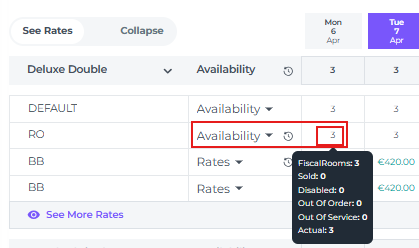
By moving your cursor on the available rooms, a pop-up will appear showing you the Physical number of rooms (fiscal), the Sold rooms, Disabled Rooms, Out of Order Rooms, Out of Service Rooms and the Actual rooms available to sell.
CALENDAR VIEW
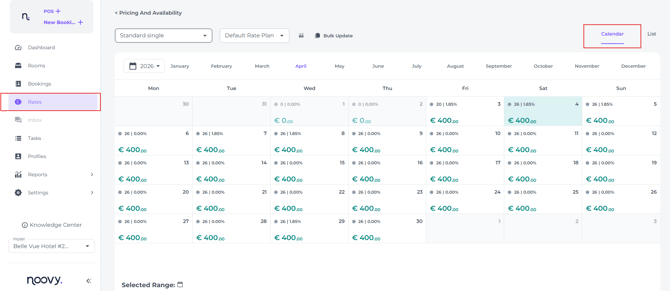
Calendar View in detail:
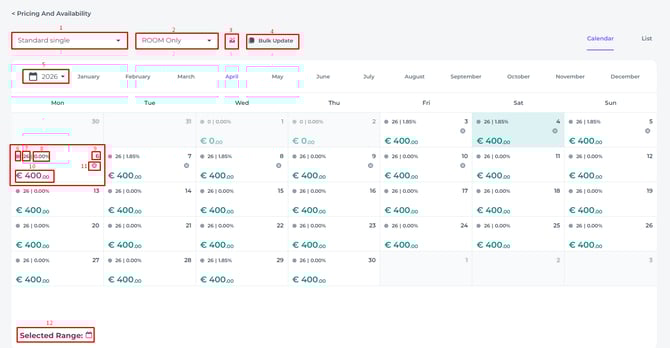
- Room Type - In Calendar View, only one room type is displayed at a time.
- Rate Plan - In Calendar View, only one room type is displayed at a time.
☝️Please Note: Updating the Default Rate Plan is usually the most efficient choice, as it affects all linked plans automatically.
⚠️ If you have previously set a manual update for a specific channel, the Default Rate Plan will not override those settings later.
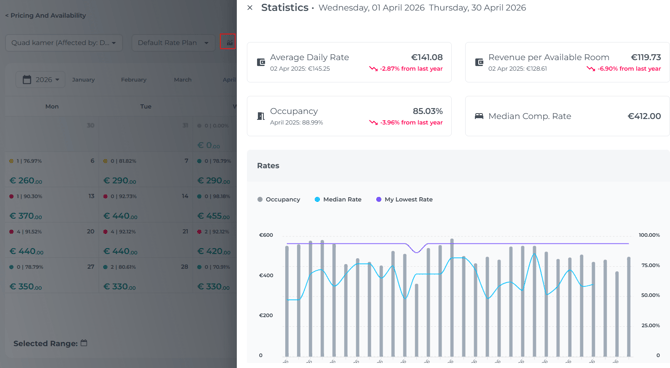
- Monthly Statistics – Provides an overview of various revenue-related metrics.
- Bulk Update - Click Bulk Update to manage rates, availability, and restrictions in bulk.
- Calendar Year - Select year (manage up to two years ahead).
- Available Rooms - Displays the net availability, accounting for sold rooms, out-of-order units, and any manual adjustments.
- Occupancy Percentage - The percentage of your total room stock that is currently occupied.
- Calendar Day - The day of the month. (*Past dates = Read-only: These fields are blurred and cannot be edited. History and logs for past dates are cleared.)
- Price - The price for the chosen rate plan on the selected date.
- Restriction(s) - Hover over this symbol
 to see active restrictions.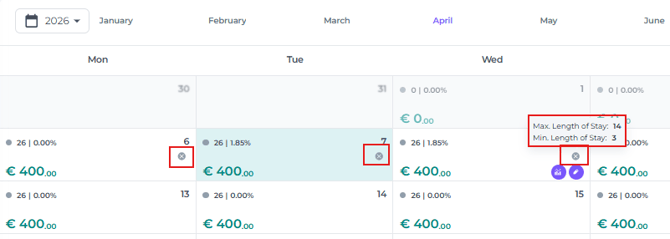
- Selected Range - The period you would like to view
Logs:
Moving your cursor over the rate shows a log of all previous changes:

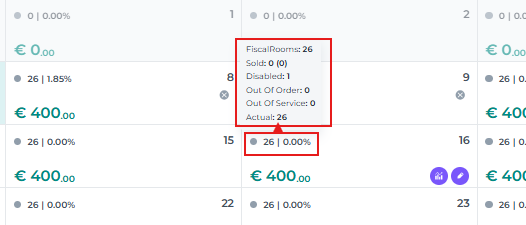
Room Information:
Hover over the occupancy rate to see a breakdown of the current room situation, including Physical (Fiscal) availability, Sold, Disabled, Out of Order, Out of Service, and Actual figures.
⚠️Important Note on Rates
Base Rates in the Rate Calendar are displayed excluding breakfast.
When adjusting prices, remember that if a guest books a breakfast-inclusive plan, the system automatically adds the breakfast cost to the base rate. For example:
-
Total Price: €100 (€80 Room + €20 Breakfast)
-
Calendar Display: €80
Note: If you prefer to sell rates as a "complete package" (e.g., €100) without a separate breakdown, the full amount will be displayed instead.