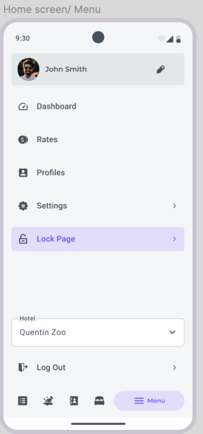
Lock Page
The Lock Page on the Mobile Noovy app will improve the operational efficiency:
-
At the reception - unlock a room remotely, or create access codes for staff, so that they can access rooms without bookings
-
Allows management to control the NoovyLocks form anywhere - view lock history to track usage and issues, and deactivate access to ensure security.
There is no need to login to the external NoovyLocks Hotel app any longer.
There are two tabs when opening the Lock Page on your mobile phone:
-
Locks Tab - The key lock provider working on behalf of Noovy (Information about door locks and granting access).
-
Gateways Tab - A device plugged into a power socket in the corridor, connects to the hotel WiFi, and acts as a bridge between the locks around it and the Noovy Locks cloud. (Information about each gateway is displayed in card view).
1. THE LOCKS tab
Selecting the Lock Tab will show the list of all locks in the system with its: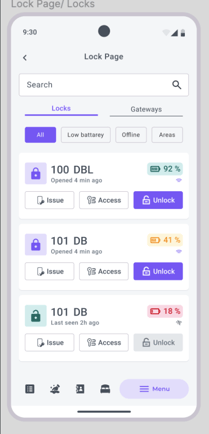
-
- Room number (or name)
- Battery percentage
- Issue button - to issue new passcode
- Access button - list of passcodes or key cards
- Unlock button - unlock the lock without issuing a key
a. The room number for which you would like to manage the lock
b. Battery percentage - Monitor each lock's battery level and replace batteries before they run out, so guests are never left locked out.
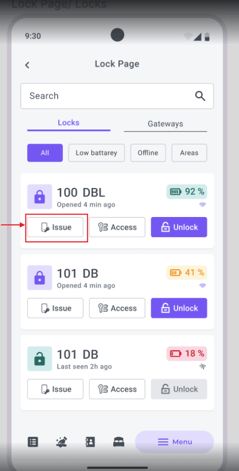
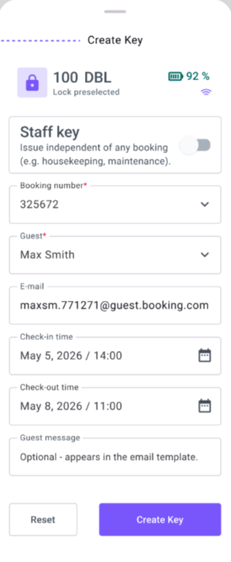
c. Issue (key) Button - When you select the Issue button for the room whose Lock feature you want to manage, several fields will appear:
-
Bookingnummer
-
Mandatory field
-
-
-
Preselected with current booking
-
-
-
Another booking can be selected - only those which are allocated into this room and departure is not in the past
-
-
Guest
- Mandatory field
-
- Preselected with the main guest of the booking’s room
- Email
- Mandatory field
- Preselected with the selected guest’s email (change with selecting another guest)
- Check-In and Check-Out times -
- Date range field for the Start and End Datetimes
-
- Mandatory field
- Preselected with booking’s start end date time
- Guest Message
-
- The message entered here will be included in the email template sent to the guest along with their passcode.
- Open field (Max 250 symbols)
- Optional
- Staff code toggle
-
- To issue a key even when no booking has been allocated to the room.
- By Default - Disabled
When toggled On:- The field booking number is disabled and empty
- The Guest Field is replaced with the Noovy User (open mandatory field, max 20 symbols)
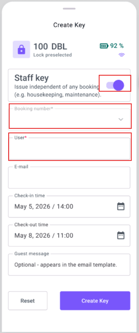
d. Access Button
Clicking the Access button opens the list of issued keys
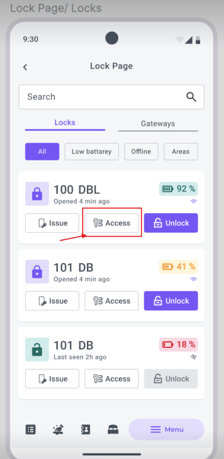
The Access screen is divided into two sections (tabs)> Active and History:
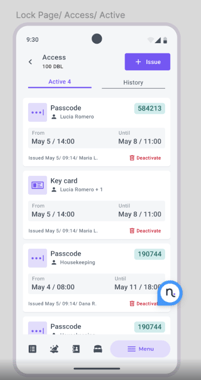
1. Tab ACTIVE - all current active keys
-
- Key type - Passcode or Key card
- Issued at - Date and time of issuance
- Guest name
- Start date and time
- End date and time
- Code number - in case of Passcode
- Button Activate/Deactivate issued keys from here
- Available for Both key types (Passcode and Key Card)
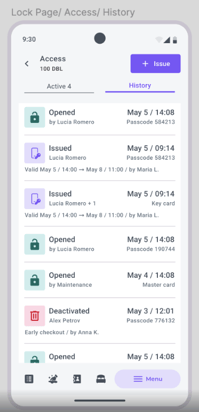
2. Tab HISTORY - includes all previous actions:
-
- Issued - containing the same data for issued keys as in Active section
- Opened
- Key type (Passcode/ Key card)
- Opened at (Date/time of issuance)
- Opened by (Return name of Key User/ Main guest/ Staff of key card)
- Deactivated
- Contains the same data for issued keys as in Active section
- Deactivated at (Date/time of disabling)
e. Unlock Button - Remotely unlock the door lock without a code
2. THE GATEWAY tab
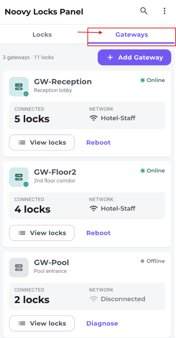
A Gateway represents the Bluetooth device in the area where door locks are installed.
This device acts as a bridge between the actual door locks and Noovy, connecting to the hotel's Wi-Fi network. Your mobile will display the areas in a card view, with the following information:
-
- Gateway Name – identifies the area the gateway covers
-
- Gateway Status - Online or Offline
- Number of connected locks field - 'x amount Locks' connected to this gateway
- View Locks - Clicking shows Locks screen, filtered by this specific gateway
-
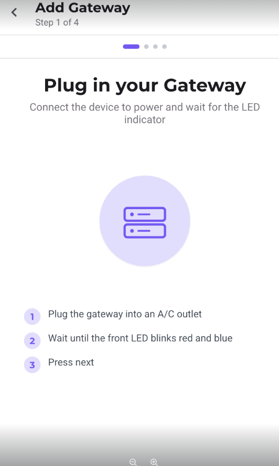
- Add Gateway Button - Opens the next page where new areas can be created
Add Gateway Button
-
- Start Pairing (bluetooth)
- Detect Gateway
- Connect to WiFi
- Confirm a Set up
Tip💡
For more insight into Noovy Locks check out our articles:
Noovy Locks - How to create and send access codes