Two Types of Optional Bookingstatuses
1 - Quote
A booking with the status 'Quote' will reserve the room and remove it from your inventory until a specified deadline is reached. Whilst creating the booking, you must set a deadline date for automatic cancellation; if the booking is not manually confirmed by this time, the room will be cancelled and released back into your inventory automatically.
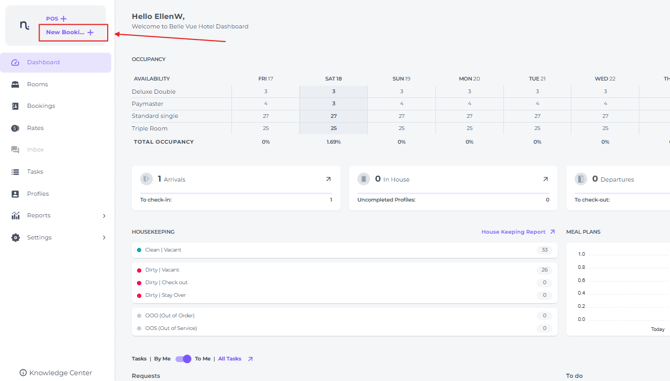
Quote bookings can be created via 'New Booking' or in the Room Calendar by creating a new reservation there. In addition, any existing booking can be changed to the status 'Quote'.
2 - On Request
Creating a booking with this booking status ensures that your inventory remains unaffected. With 'On Request' bookings, the room stays available for other guests to book until it is manually set to the status 'Confirmed' by the hotel. On Request Bookings will be created via New Booking, or by amending the status of any existing reservation to On Request. On Request bookings can not be created on the Room Calendar.
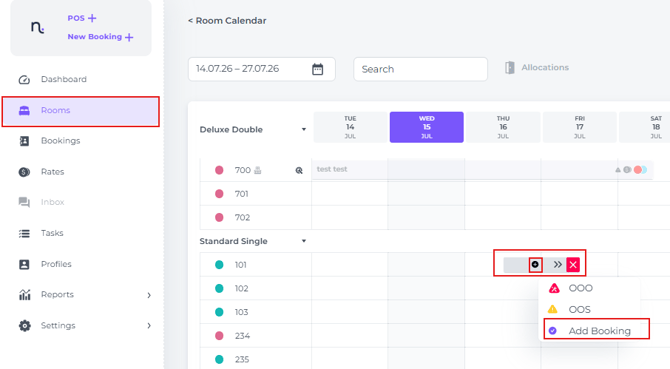
Creating a QUOTE booking via the Rooms Calendar:
-
Create a booking via the Room Calendar
-
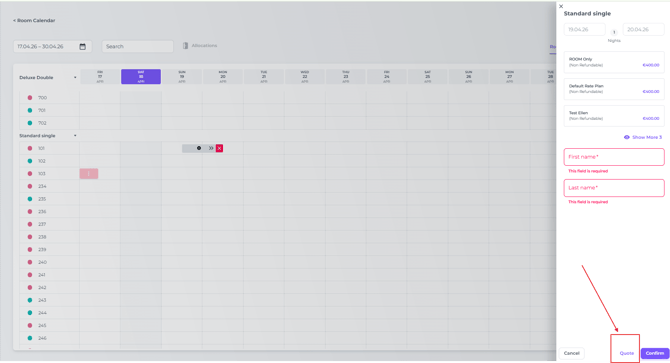
Save by selecting Quote instead of Confirmed:
-
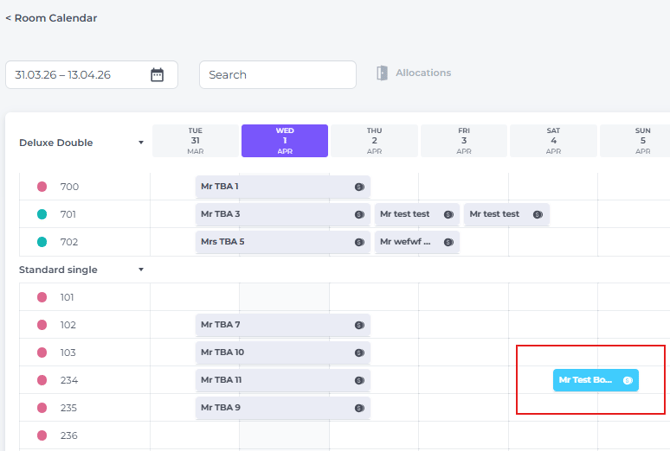
The default colour of a Quote booking in the Rooms Calendar is blue:
- Quotes created via the Room Calendar adhere to the default release time* configured in your Hotel Settings:
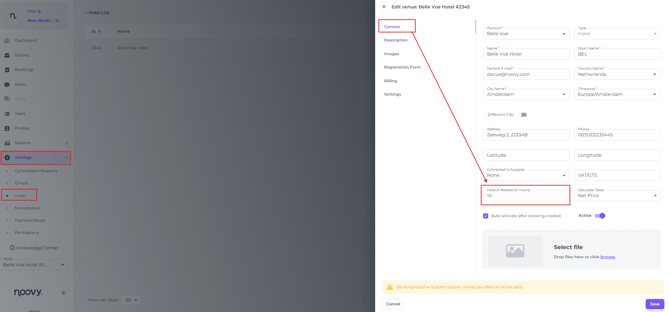
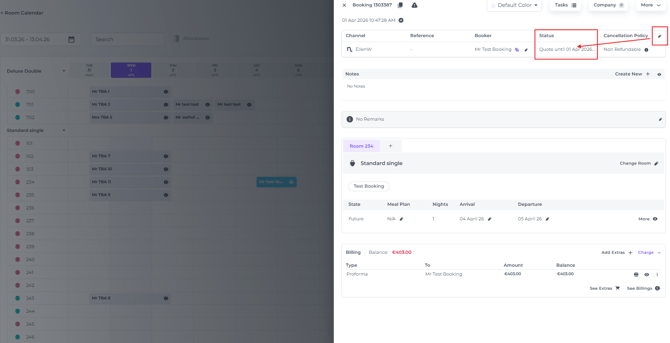
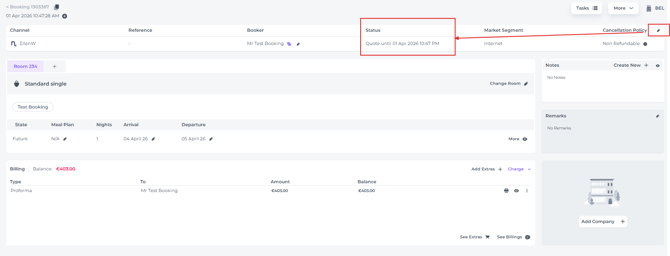
*Once this deadline is reached, if the booking status has not been manually updated to 'Confirmed', the reservation will be automatically cancelled and the room returned to the live inventory. - Consequently, when creating a Quote via the Room Calendar, you do not need to enter a release time manually; however, you can adjust this time if required within the Booking Pop-up or on the Booking Page.
-
Booking Pop-Up (by clicking once on the reservation in the Rooms Calendar:
-
Booking Page (by double clicking on the reservation in the Rooms Calendar)
-
Creating a QUOTE Booking via the New Booking Feature:
-
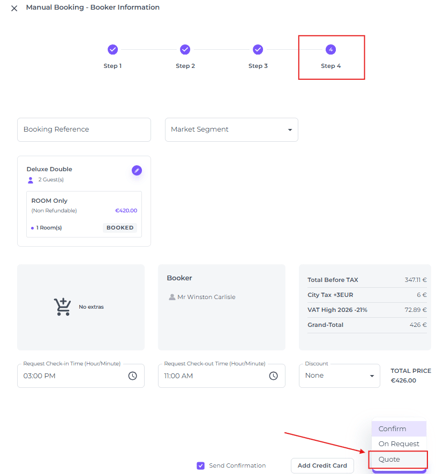
In Step 4 of the Create New Booking feature, instead of confirming, select 'Quote' :
Please make sure to click on the arrow instead of the word Confirm!
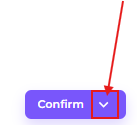
Choose Quote:
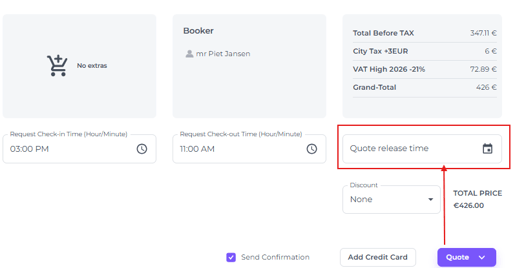
- The system will prompt you to manually enter a release date and time:
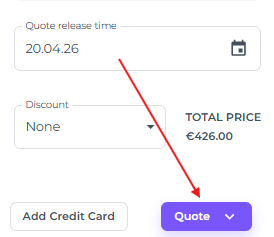
- When set, click Quote to create the booking:
Creating an ON REQUEST booking via the New Booking Feature:
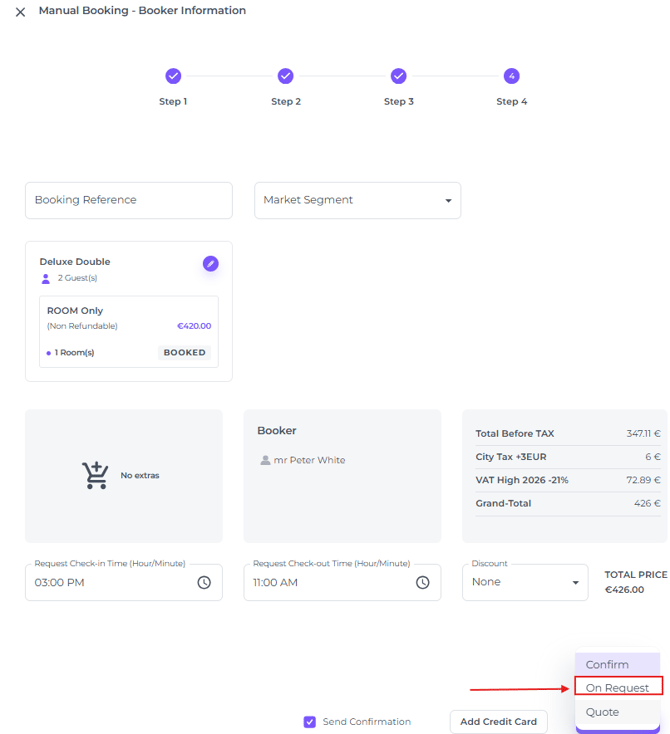
- In the final step of the Booking process (step 4) choose On Request to finalise the booking.
Make sure to click on the arrow and not the word Confirm, this will open a dropdwon menu:
☝️Please Note:
When creating a booking via the room Calendar there is no option to create am On Request booking.