The Room Calendar is an essential daily tool designed to provide a clear, real-time overview of all bookings—including arrivals, departures, and both upcoming and past stays—within your selected date range.
👉 Features within the Rooms Calendar:
-
-
Complete overview of arrivals, departures, and future reservations.
-
Easy check-in and check-out.
-
Create reservations in seconds.
-
Instantly change the housekeeping status of rooms to clean or dirty.
-
Easily set rooms to "Out of Order" or "Out of Service".
-
Drag and drop reservations from one room to another.
-
Set reservations "Do Not Move" with the lock function.
-
Instantly view important reservation information by simply hovering your cursor over a reservation.
-
-
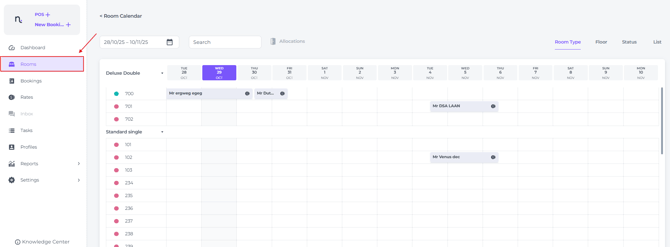
From the main menu choose Rooms:
-
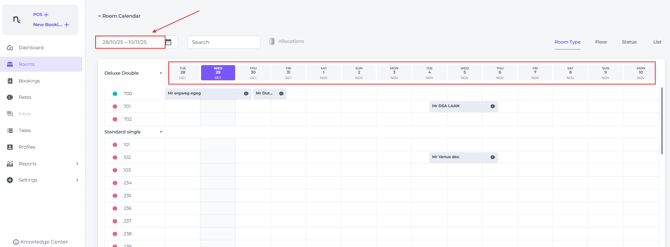
Use the date range bar to select the period you wish to display. By default, the calendar shows a 14-day window, beginning with yesterday and extending through the following 13 days:
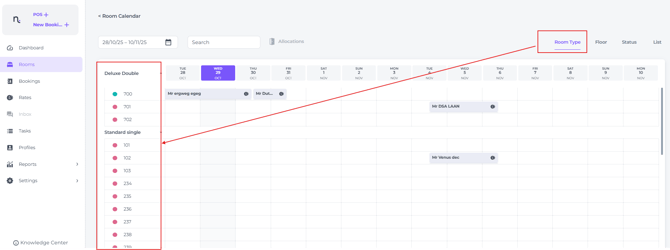
- By default, the Rooms Calendar displays a list organised by Room Type:
Fields explained:
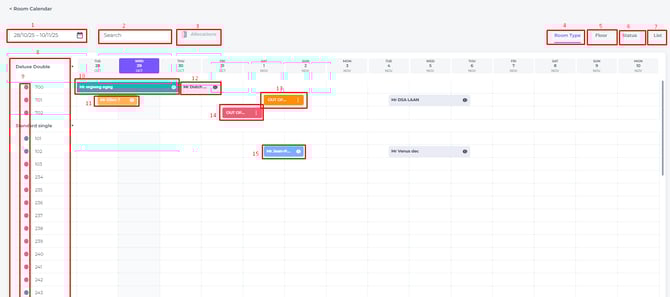
- Date Range picker
Select the period you want to view reservations for.
*Please note: The maximum length of the period is 30 days.
If you select a wider date range, some details may extend beyond the visible area of the calendar. To view all information, use the scroll bar at the bottom to navigate horizontally: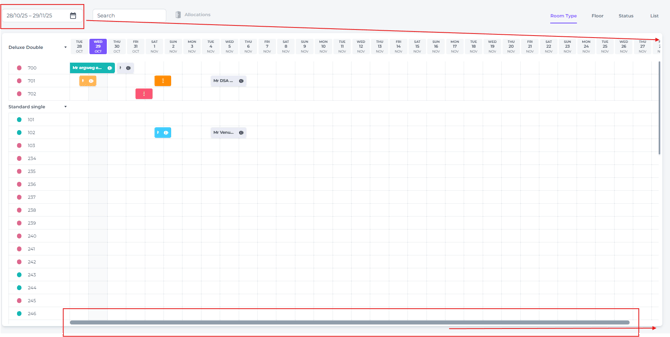
- Search - Search for a specific room number.
- Allocations - Reservations that have not yet been allocated will appear here. A red dot showing the number of unallocated reservations will be displayed:
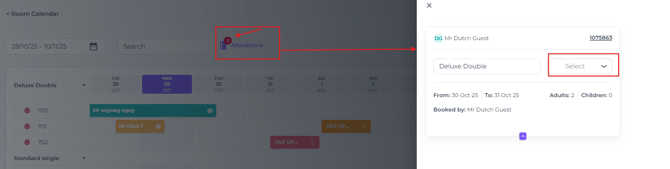 Assign a room to include them in the calendar view.
 - Room Type View - The Rooms Calendar displays a rooms list organised by Room Type:
- Floor View - The Rooms Calendar displays a rooms list organised by Room Type:
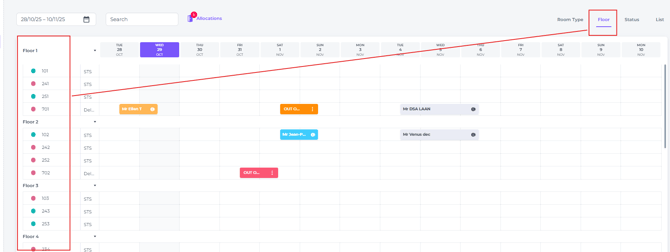
- Status View - The Rooms Calendar displays a rooms list organised by Status (Arrivals- Departures-In House-Empty) :
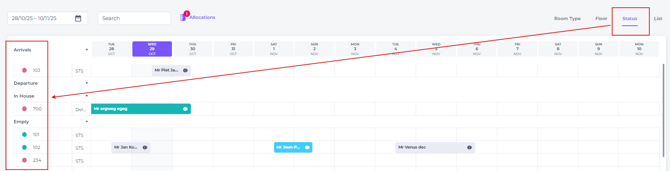
- List View - The Rooms Calendar displays a rooms list organised by room numbers:
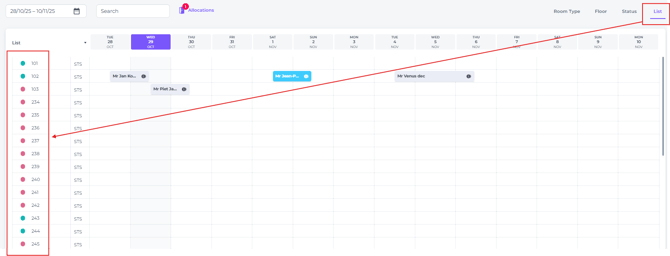
- Rooms -All rooms are displayed and categorized according to the selected view.
- Room Status - Clean (green dot) or Dirty (red dot).
- In House Reservation - Marked by default in the colour green.
- Stayed Reservation - Marked by default in the colour yellow.
- Future Reservation - Marked by default in the colour grey.
- Out Of Service - When a room is set to ‘Out of Service’, it cannot be assigned to new reservations until you return it to available status. Typically, this option is used for rooms requiring minor repairs or maintenance and last to sell. The room will stay in the inventory and therefore will still be available for sale.
- Out of Order - When a room is set to ‘Out of Order’, it is completely removed from availability and cannot be assigned to any reservations or booked during the specified period.
Use this status for rooms that require significant repairs or are unavailable for an extended time, ensuring they are excluded from all booking options until you mark them as available again. - Customised colour - You can assign a custom colour to any reservation in any status, allowing you to classify it under a predefined category for easier identification and organisation. *Ensure every team member understands the meaning assigned to each colour.
Summary pop up:
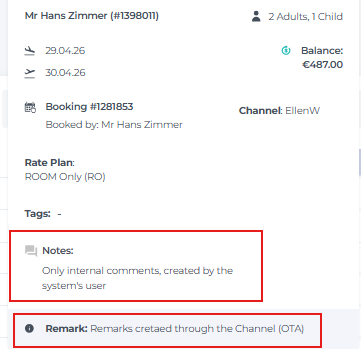
When you hover your cursor on a specific reservation, vital pieces of information will be displayed in a pop up:
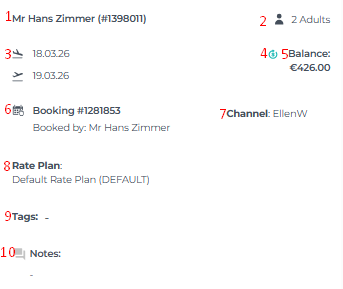
- Guest name
- The number of guests, broken down into adults and children.
- The Arrival and Departure date.
- A red indicator shows a non-refundable booking, while a green indicator shows a refundable booking.
- Balance - to see the remaining amount to be paid.
- Booking ID and Booker name - the system's internal booking reference number and the booker's name (not necessarily the same as guest name) .
- Channel - The OTA (Online Travel Agent/ Website) where the booking has been made, or identifying the name of the system user who created the booking manually.
- Rate Plan - The applicable rate plan assigned/booked.
- Tags - View the tag associated with this booking. Each hotel maintains its own unique set of tags:
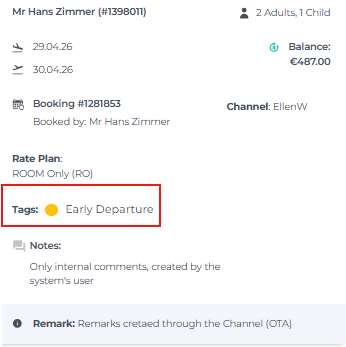
💡Tip: Check out the following articles on Tags:
How to use Tags?
How to create a Tag?
Tags linked to reservations are immediately visible when you open the Room Calendar. If tags are used frequently, you will quickly become familiar with the meaning of each tag colour, making it easier to scan the calendar without opening every booking to review its details.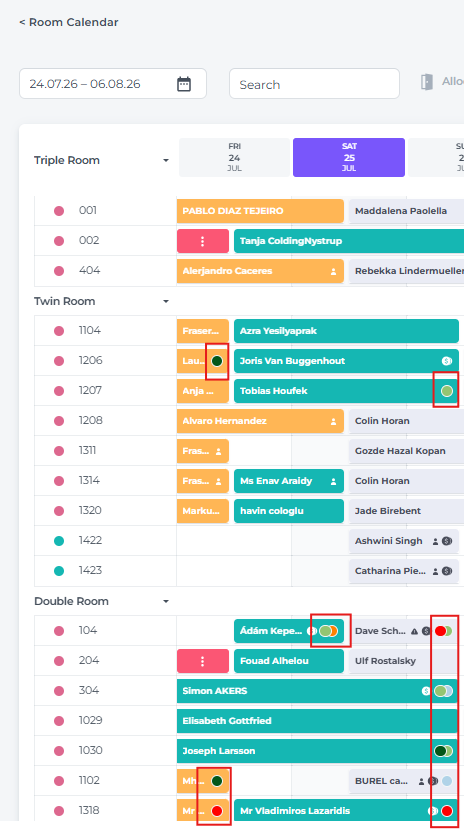
- Notes - the internal comments added to this specific reservation.
📝Please note:
Remarks:
If a Remark is also displayed, this has been pulled from the OTA or the booking channel. These consist of either automated comments from the channel or specific remarks made by the guest at the time of booking.
💡Tip:
The possibilities of the Rooms Calendar are ample.
Check out the following articles to learn more about the Room Calendar possibilities:
👉How to create a new booking?
👉How to allocate a booking to a room?
👉How to check in a reservation?
👉How to check out a reservation?
👉Set a reservation to Do Not Move/Lock the Room?
👉How to manually change the housekeeping status of a room?
👉How to set up Out if Order and Out of Service status?